Publish app on app store: The Fast-Track Guide to App Submission
Learn how to publish app on app store with our end-to-end guide. Get tips on ASO, screenshots, and avoiding common rejections.
Before you can get your app into the hands of users, there’s some essential groundwork you have to lay with Apple. This isn’t the fun part, but getting it right from the start saves you from massive headaches later. It all boils down to enrolling in their developer program and then wrestling with the technical bits like certificates and identifiers.

Think of this phase as mission control for your app launch. Every setting you configure now determines whether you have a smooth liftoff or a frustrating series of error messages.
Get an Apple Developer Account
First things first, you need to join the Apple Developer Program. This is your official ticket to the App Store ecosystem. The program costs $99 per year, and it's a non-negotiable step.
When you sign up, you'll hit an important fork in the road: choosing between an Individual or an Organization account. This decision impacts how your app is presented on the App Store, so it’s worth a moment of thought.
Here’s a quick breakdown to help you decide.
Apple Developer Program Account Types
| Feature | Individual Account | Organization Account |
|---|---|---|
| Seller Name | Your personal legal name | Your company's legal name |
| Verification | Simple identity check | Requires a D-U-N-S Number to verify your company's legal status |
| Team Management | Limited to your own access | Full team management with different roles and permissions |
| Best For | Solo developers, hobbyists, or freelancers | Companies, non-profits, or any legal business entity |
If you're building an app for your business, just go for the Organization account. It looks more professional to have your company's name listed as the seller, and it gives you the flexibility to add other developers or marketers to your team down the line. It’s a bit more work to set up because of the D-U-N-S number requirement, but it’s the right move for any serious venture.
Handle Your Certificates, Identifiers, and Profiles
Once you're in the program, welcome to the world of certificates, identifiers, and provisioning profiles. It sounds intimidating, but it's really just Apple's security system to make sure every app comes from a verified source.
You'll generate all these assets right from your developer account. Here’s what you’ll be dealing with:
- App ID: A unique identifier for your app, usually in a reverse domain format like
com.yourcompany.yourappname. - Certificates: These cryptographic keys essentially prove that you are who you say you are and authorize your Mac for development and distribution.
- Provisioning Profiles: These are the glue that ties your App ID and certificates together, letting you install your app on test devices and, ultimately, submit it to the App Store.
Of course, before you can dive into the technical setup, you need an app to set up. For many, hiring mobile app developers is the first real step in turning an idea into a functional product ready for this process.
Why All This Upfront Work Matters
Going through these hoops is more than just a technical chore. It’s your entry into one of the most profitable digital marketplaces on the planet.
Sure, the App Store has fewer apps than its competitors, around 1.9 million as of early 2025, but it punches way above its weight in revenue. iOS users are notoriously more willing to spend money, generating 2.5 times more revenue per user than their Android counterparts.
This translates to some staggering numbers. The App Store is projected to pull in $190 billion in 2025, capturing a massive 65.8% of the total global app revenue.
Pro Tip: Take the time to get this right. Seriously. A clean setup in Xcode with the correct bundle ID and profiles from the start will save you from a world of pain. Trying to fix a tangled mess of provisioning profiles right before a launch deadline is a nightmare you want to avoid.
Once this foundation is solid, you can finally move on to the more exciting part: preparing your app’s storefront in App Store Connect. With the technical busywork out of the way, you can focus on crafting a compelling listing that actually gets people to tap that "Download" button.
Crafting a High-Converting App Store Presence
Your App Store page is your digital storefront. It's the first thing potential users see. Long before they experience a single feature, they’re judging your app based on its name, screenshots, and the first few lines of your description. This first impression is everything, and mastering App Store Optimization (ASO) is how you turn a casual browser into a loyal user.
This isn't just about stuffing keywords everywhere. It’s about telling a compelling story that convinces someone your app is worth their time and precious screen space. The effort you put in here directly impacts your ability to drive organic downloads and actually succeed when you publish an app on the app store.
Nail Your First Impression with Your App Name and Subtitle
Your app's name is more than a label; it’s a powerful tool for branding and discovery. A great name is memorable, easy to spell, and gives a subtle hint about what your app actually does. You want it to be unique enough to stand out, but not so clever that nobody can find it.
Right below your name is your subtitle, and it's your next best asset. This is your one-liner, your elevator pitch. Instead of just listing features, you need to sell the core benefit.
- Weak Subtitle: "Task lists, notes, and calendar"
- Strong Subtitle: "Organize your life in minutes"
See the difference? The second one speaks directly to a user’s goal. It frames the app as a solution, not just another tool.
Tell a Visual Story with High-Converting Screenshots
Let's be honest: your screenshots are probably the most influential part of your entire store listing. People make snap judgments and download decisions based on these images alone. They need to do more than just show your UI, they have to tell a story and drive app store growth.
Well-designed screenshots guide the user through your app’s best features, using annotated text to highlight key benefits. Each image should build on the last, creating a quick visual narrative that takes the user from a problem to your app's solution. To make them, you can use a screenshot editor to place your raw UI captures into device frames, add compelling headlines, and choose vibrant, eye-catching backgrounds that align with your brand.
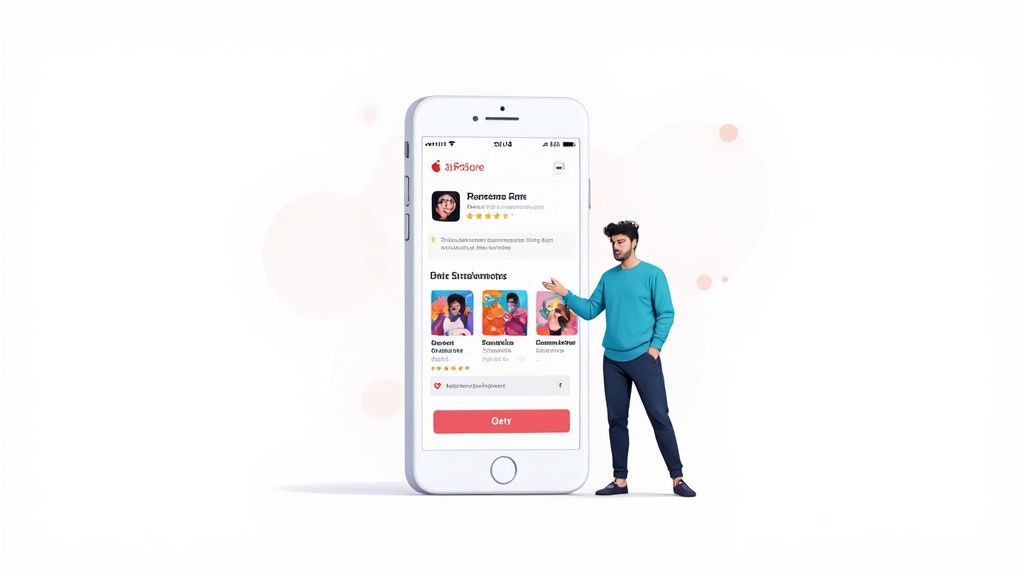
This is a great example of an efficient and high-converting app store screenshot. Professional mockups with snappy headlines can turn a simple UI into an engaging pitch. The bright, vibrant background and clear text grab attention and communicate value instantly. We've got a whole guide packed with more strategies for creating effective mobile app screenshots.
Maximize Impact with App Previews
An App Preview is a short video, up to 30 seconds, that shows your app in action. This is your most dynamic tool for grabbing someone's attention. A well-produced preview can seriously boost your conversion rates by showing people exactly what they're going to get.
If you want to get this right, it pays to understand how to create marketing videos that convert prospective users. My advice? Keep it fast-paced, use good music, and focus on your top 3-5 features.
A great App Preview doesn't just show features; it evokes a feeling. It should make users feel excited, productive, or entertained, giving them a real taste of the experience your app delivers.
Write a Persuasive and Searchable App Description
While most people will only skim the first few lines, your app description is still vital. It's crucial for search visibility and for convincing those more discerning users to hit "Download." That first paragraph is the most important; it needs to be a compelling summary that hooks the reader right away.
From there, structure the rest for scannability. Use bullet points or short paragraphs to break down features and benefits.
- Highlight Core Benefits: State clearly how your app solves a problem or makes a user's life better.
- List Key Features: A simple bulleted list is perfect for outlining the main functionalities.
- Include Social Proof: If you've got them, mention awards, press features, or impressive user milestones.
This kind of careful presentation makes your app more discoverable and turns your listing into a powerful conversion engine. The work here is a huge part of what can make or break an app financially. To put it in perspective, in 2024, Apple's App Store was a part of a system that facilitated nearly $1.3 trillion in worldwide billings and sales. That figure doubled from 2019, showing just how massive the opportunity is.
With your app looking sharp and your store listing dialed in, it’s time for the final technical hurdle: getting your code from Xcode into App Store Connect. This is where your polished app meets Apple’s ecosystem, and while it might sound intimidating, it's a pretty straightforward process once you've done it a few times.
First things first, you need to create a final, production-ready version of your app inside Xcode. You'll do this by "archiving" your build, which is just a fancy way of saying Xcode compiles your code, bundles up all your assets, and spits out a file ready for Apple's servers. Once the archive is complete, Xcode’s Organizer window pops up, showing your new build. From there, you can kick off the upload directly to App Store Connect.
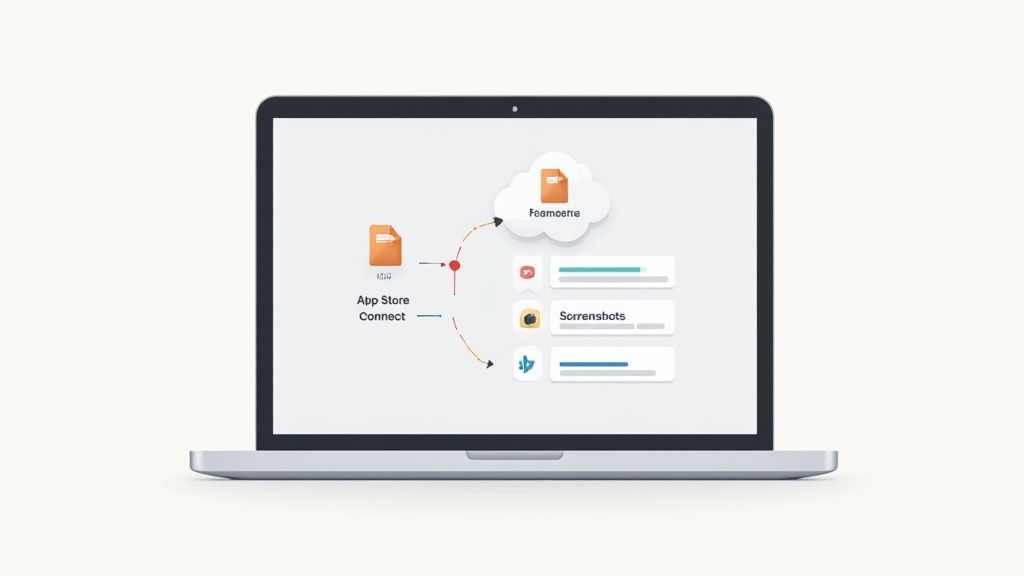
Working in the App Store Connect Dashboard
After you hit upload, your build will take a few minutes to process on Apple's end. While their servers are churning away, you can jump over to the App Store Connect dashboard and start plugging in all that great metadata you prepared earlier.
Here's a quick rundown of what you'll need to fill out:
- App Information: This is the basic stuff, your app’s name, subtitle, and primary category.
- Pricing and Availability: Is your app free or paid? You'll set that here. You can even get granular, setting different prices for different countries or scheduling price changes down the road.
- App Privacy: You absolutely have to complete the privacy questionnaire. This is where you declare what data your app collects and how you use it. Your answers generate the "privacy nutrition label" that customers see on your product page.
This is also where you’ll upload your screenshots and app previews. These visuals are your best sales tool, so getting them right is non-negotiable. For a deep dive into the specifics, check out our guide on how to upload screenshots to the App Store. It'll save you a headache.
The Final Details That Get People Rejected
With the main sections filled out, there are a few smaller details that are easy to overlook but can get your app sent straight to the rejection pile. Pay close attention here.
If your app has any kind of login, you must provide the Apple review team with a fully functional demo account. I’m talking about a real username and password that lets them access every single part of your app. Don’t try to give them a limited account; they need to see it all.
Key Takeaway: The app review team needs to experience your app just like a real user would. Hiding features behind a login without providing credentials is one of the fastest ways to get a rejection.
Finally, you'll need to provide contact info for whoever on your team will handle review questions. This is who Apple will call or email if they run into an issue. There's also a "Notes for Reviewer" section, which is gold. Use it to explain any complex features, non-obvious functionality, or anything else that might confuse someone seeing your app for the first time. A little clarity here can shave days off your review time.
Once all the fields are filled, your build has finished processing, and you've selected it for this version, you’re ready for the big moment. Go ahead and hit that "Submit for Review" button. You’ve earned it.
Using TestFlight for Better Beta Testing
Launching a brand new app without any real-world feedback is a recipe for disaster. Before you hit that big "Publish" button on the App Store, you absolutely need to see how your app behaves outside the pristine, perfect environment of an emulator. This is where TestFlight, Apple's free beta testing platform, becomes one of the most critical tools in your arsenal.
A solid TestFlight phase is about so much more than just squashing bugs. It's your chance to fine tune the user experience, see if your features actually make sense to people, and start building a small community of early fans who are genuinely invested in what you're creating.
Think of it as the final dress rehearsal before opening night. It’s your best shot at making sure the launch goes smoothly.
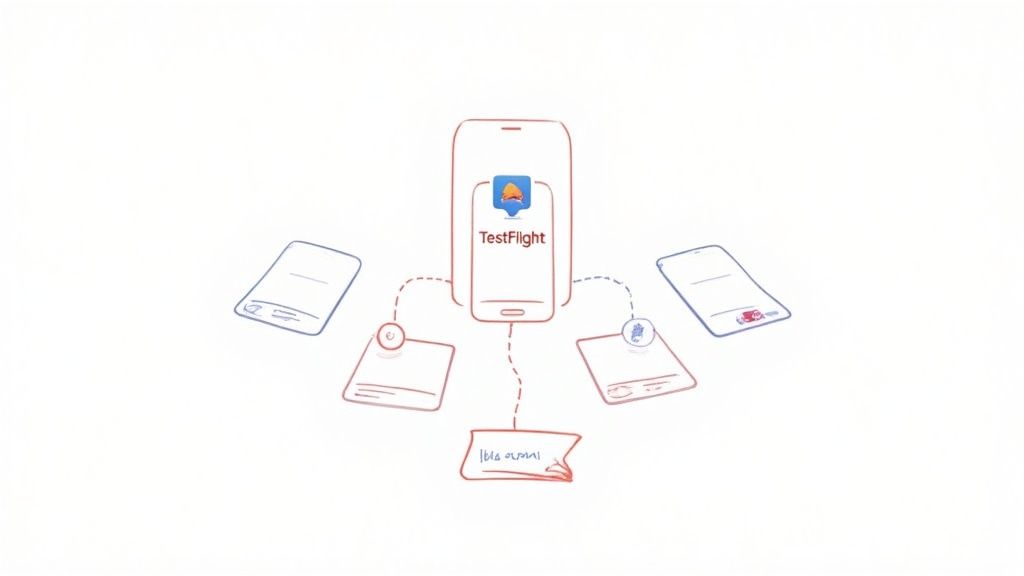
Internal vs. External Testers
TestFlight splits your testers into two groups, and knowing how to use each one is key to a smart testing strategy. They each serve a very different purpose.
Internal Testers:
- Who they are: These are the people on your App Store Connect team, your developers, QA folks, designers, or other trusted insiders.
- Group size: You can invite up to 100 internal testers.
- Review process: Builds sent to internal testers don't need Apple's approval. You can push updates to them almost instantly.
This makes the internal group perfect for that rapid, day-to-day testing of new features and quick bug fixes. They are your first line of defense.
External Testers:
- Who they are: This group can be anyone outside your core team. Think friends, family, or even a public call for volunteers who are interested in your app.
- Group size: You can invite a whopping 10,000 external testers.
- Review process: The very first build you send to external testers has to be approved by Apple's review team. After that, subsequent builds for the same version number usually get a much faster pass.
This is the group that gives you a taste of reality. Their feedback is crucial for understanding how your app will be received by a broader audience that looks more like your future customers.
Recruiting and Managing Testers
Finding the right testers is everything. You're looking for people who will actually use the app and give you honest, thoughtful feedback, not just install it and let it sit on their home screen.
A great way to start is by setting up a simple landing page or even a Google Form to collect emails from people who want to be beta testers. You can share this on social media, in relevant online forums, or just through your personal network. Once you have a list, you can either add their emails directly in App Store Connect or share a public invite link.
Your real goal here is to gather actionable insights. Try to find testers who actually fit your target demographic. Their feedback will be infinitely more valuable for getting your app ready for the public.
Gathering and Acting on Feedback
When a tester runs into a bug or has an idea, they can snap a screenshot and send feedback right from inside the TestFlight app. All of this feedback, along with any crash reports, funnels directly into App Store Connect under the "TestFlight" tab.
Be smart about the feedback you ask for. Don't just send out a build with a vague "What do you think?" Instead, give your testers specific things to look at with each update.
For example, you could ask:
- "How intuitive did you find the new onboarding flow?"
- "Did you notice any lag when scrolling through the main feed?"
- "Was it easy to find the settings page?"
This targeted approach pushes testers to give you specific, useful feedback you can actually act on. A well-run beta testing phase doesn't just lead to a more stable app, it builds incredible momentum and confidence for your official launch.
Alright, you’ve built your app, polished it, and finally hit that "Submit for Review" button. The hard part’s over, right? Well, almost. Now you face the final gatekeeper between your creation and the world: Apple's App Review team.
This is the step that gives most developers a knot in their stomach, but it doesn't have to be that way. Getting that "Ready for Sale" notification is really just about understanding the rules of the road and knowing what to do if you hit a speed bump.
Learning to handle this process smoothly is a massive advantage when you want to publish an app on the app store. It cuts down on stress and shortens the time it takes to get your app into users' hands. The review isn't some mysterious black box; it’s a system designed to keep the App Store safe and high-quality for everyone.
Common Reasons for App Rejection
Honestly, the best way to get through review is to sidestep the common traps before you even submit. The review team has a very detailed set of guidelines, and most rejections boil down to a few familiar issues. If you proactively check your app against these points, you can save yourself days (or even weeks) of frustrating back-and-forth.
Here are the greatest hits of app rejections I've seen over the years:
- Guideline 2.1 - Performance: App Completeness: This is the big one. If you submit an app that’s buggy, crashes constantly, or just feels unfinished, it’s a guaranteed rejection. Broken links, placeholder text, or buttons that do nothing are immediate red flags.
- Guideline 3.1.1 - In-App Purchase: This trips up a lot of people. If you're selling any kind of digital content or service, you absolutely must use Apple's In-App Purchase system. Trying to route users to an external payment processor like Stripe or PayPal for digital goods is a hard no.
- Guideline 5.1.1 - Data Collection and Storage: Privacy is a huge deal for Apple. You need a clear, easy-to-find privacy policy, and you must be completely transparent about the data you collect. If your app's behavior doesn't match what you've declared in the App Store Connect privacy questionnaire, you'll get flagged.
- Guideline 4.3 - Spam: This is about originality. Pumping out multiple apps that are basically the same with a different coat of paint is considered spam. Each app you submit needs to offer unique value and a distinct experience.
Apple’s review process is nothing if not thorough. They are looking for polished, stable, and genuinely useful apps. Their main job is to protect users, which means they're very diligent about finding performance bugs and guideline violations.
What to Do When Your App Is Rejected
It happens. Even to developers who’ve been doing this for a decade. When that rejection notice lands in your inbox, the trick is not to panic. Take a breath and approach it methodically. Your only goal is to understand the problem, fix it, and get back in the queue.
When a rejection happens, Apple will send you a message in the Resolution Center inside App Store Connect. This message will always cite the specific guideline you violated and usually includes notes or screenshots from the reviewer to help you pinpoint the issue.
A Plan for Professional Resubmission
Your communication in the Resolution Center can make or break the resubmission process. Always, always be professional and polite. Getting defensive or arguing with the reviewer is a waste of time and will only hurt your case. Think of it as a collaboration to get your app over the finish line.
Follow these steps to turn that rejection around quickly:
- Read Carefully: Don't just skim the rejection notice. Read every word to understand exactly which guideline was cited and what the reviewer's specific feedback was. Sometimes, it's just a simple misunderstanding.
- Reproduce the Issue: If it’s a bug, your first step is to see if you can make it happen on your end. The reviewer's notes and any attached screenshots are your treasure map.
- Communicate Clearly: If you genuinely don't understand the feedback, or if you think the reviewer has made a mistake, reply in the Resolution Center. Politely ask for more details or explain how a specific feature is intended to work.
- Fix and Resubmit: Once you've fixed the problem, submit a new build. Here’s a pro tip: in the "Notes for Reviewer" section of your new submission, briefly explain what you changed to address the previous rejection. This shows the reviewer you’re engaged and have taken their feedback seriously.
By treating rejections as a constructive part of the process, you turn a frustrating delay into an opportunity to launch a better, more compliant app. This professional approach builds goodwill with the review team and makes all your future submissions that much smoother.
App Store Publishing: Your Questions Answered
That last mile of getting your app on the store can feel like a totally different skillset. Suddenly, you're dealing with new terms, weird timelines, and a whole lot of waiting. To cut through the noise, here are some straight answers to the questions I hear most often from developers heading into the final stretch.
Think of this as the final briefing before you hit that "Submit for Review" button.
How Much Does It Cost to Publish an App on the App Store?
There’s a clear price of admission to Apple's world. To get your app onto any of their platforms, you first have to join the Apple Developer Program.
It’s a $99 annual membership for individuals and organizations alike. This isn't a per-app fee; it's a yearly subscription that unlocks everything you need: the development tools, beta testing with TestFlight, and, most importantly, the ability to submit your app for review. It's a non-negotiable first step.
How Long Does the App Review Process Take?
This is the million-dollar question, isn't it? The one that keeps you up at night before a launch. The good news is that Apple has gotten a lot faster over the years.
Most submissions now get reviewed within 24 to 48 hours. But, and this is a big but, you should never cut your launch plan that close.
- First-Time Jitters: If it’s your very first app, expect a longer review. The team will be taking a much closer look at your app and your account.
- Complex Builds: Apps with in-app purchases, complicated features, or anything that needs special hardware will almost certainly face a more thorough, and therefore longer, review.
- The Rejection Loop: Get rejected, and the clock resets. You fix the issue, resubmit, and you’re back in the queue.
My rule of thumb? Always budget at least a week for the full review cycle. That buffer gives you breathing room to handle a rejection and resubmit without blowing up your entire launch schedule.
What Is the Difference Between Publishing on the App Store vs Google Play?
The end goal is the same, but the road to get there is wildly different for Apple's App Store and the Google Play Store. Knowing what you're in for can save you a lot of headaches, especially if you're planning a cross-platform strategy.
Here’s a quick rundown of what really matters:
| Feature | Apple App Store (iOS) | Google Play Store (Android) |
|---|---|---|
| Review Process | A strict, manual review process. They check everything: quality, performance, and whether you followed every single guideline. | Mostly automated and way faster. Your app can be live in just a few hours. |
| Publishing Cost | A recurring $99 per year to keep your developer account active. | A one-time $25 registration fee. That's it. You're in for life. |
| Audience Behavior | Historically, iOS users spend more money on paid apps and in-app purchases. | A massive global user base, but the average revenue per user is generally lower. |
| Guidelines | Apple is notoriously strict with its design and content rules, which creates a very curated and consistent user experience. | The guidelines are much more flexible. This allows for more variety but can also lead to some wild inconsistencies in app quality. |
Honestly, where you launch first comes down to your target audience, your business model, and how many resources you have. But I've found that the intense nature of Apple's review has a silver lining: if your app can pass their muster, getting it approved on Google Play is usually a walk in the park.
Ready to make your app’s first impression count? With ScreenshotWhale, you can create stunning, high-converting App Store and Google Play screenshots in minutes. Stop wrestling with design tools and start driving downloads. Create your perfect screenshots today at ScreenshotWhale.
Put this into practice on your own listing
Import your live app into an ASO workspace — metadata, keywords, competitors, and store screenshots in one place.
Import my app