Boost App Store Growth with Optimized Google Play Store Screenshot Sizes
Master google play store screenshot sizes for all devices with a concise guide, specs, and pro tips to boost your app conversions.
Your app's screenshots are your most powerful sales tool on the Google Play Store, and getting the specs right is the first, most critical step to boosting conversions. If you botch the technical details, you risk distorted images, frustrating upload errors, or even warnings on your listing that scare potential users away.
This guide is all about making your app look sharp and professional from the very first glance, turning browsers into installers.
Core Requirements for Phone Screenshots
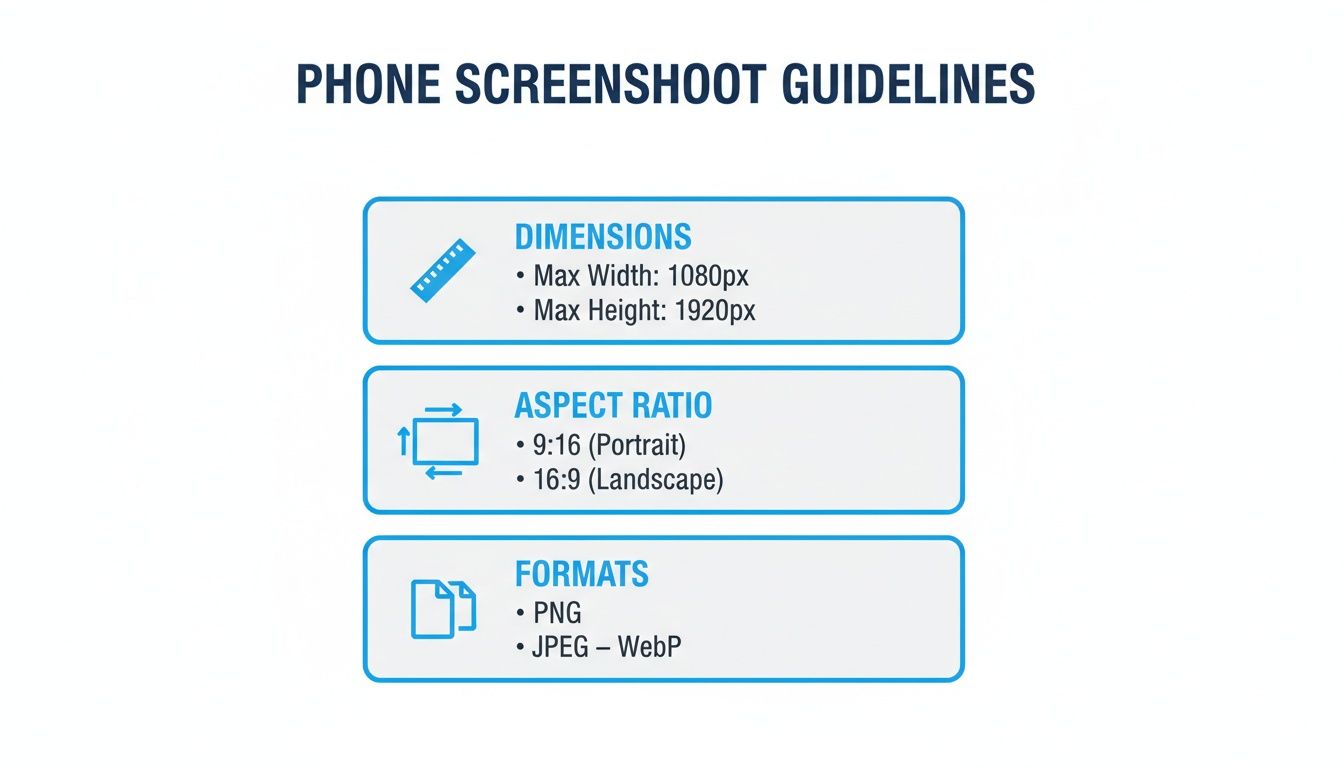
To handle the massive variety of Android devices, Google’s guidelines focus on universal scaling. Think of these specs as the non-negotiable foundation for your phone screenshots.
Here's a quick reference table summarizing the absolute must knows.
| Attribute | Requirement | Quick Note |
|---|---|---|
| Screenshot Count | 2 to 8 images | You must upload at least two to publish your app. |
| File Format | JPEG or 24-bit PNG | Crucially, no alpha channels (transparency). |
| Dimensions | Min: 320px, Max: 3840px | This applies to both the height and the width of the image. |
| Aspect Ratio | Cannot be more than 2:1 | A 2000x1000px image works; a 2500x1000px one will be rejected. |
| Max File Size | 8MB per image | Keep an eye on this to avoid upload failures. |
Getting these basics right is the difference between a listing that looks polished and one that looks broken. It’s a simple checklist that builds immediate trust with potential users.
Why the Rules Matter (Especially the Aspect Ratio)
That 2:1 aspect ratio rule is a big one. It's Google’s way of ensuring your screenshots don’t look bizarrely stretched or squished on the thousands of different Android screen sizes out there. It’s all about maintaining a clean, consistent user experience in the store.
For file types, you can upload JPEG or 24-bit PNGs. Just remember to export your PNGs without an alpha channel, as transparency isn’t supported and will cause an error. And keep each file under 8MB to be safe.
These rules aren't just for Android, of course. While there's a lot of overlap, it's worth checking out the specific App Store screenshot size requirements if you're also publishing on iOS. Each platform has its own little quirks.
Detailed Specifications for Phone Screenshots
Let's get one thing straight: most people will find and download your app on their phone. That makes getting the phone screenshot specs right a top priority. Nail this, and your app's first impression will be polished, professional, and convincing.
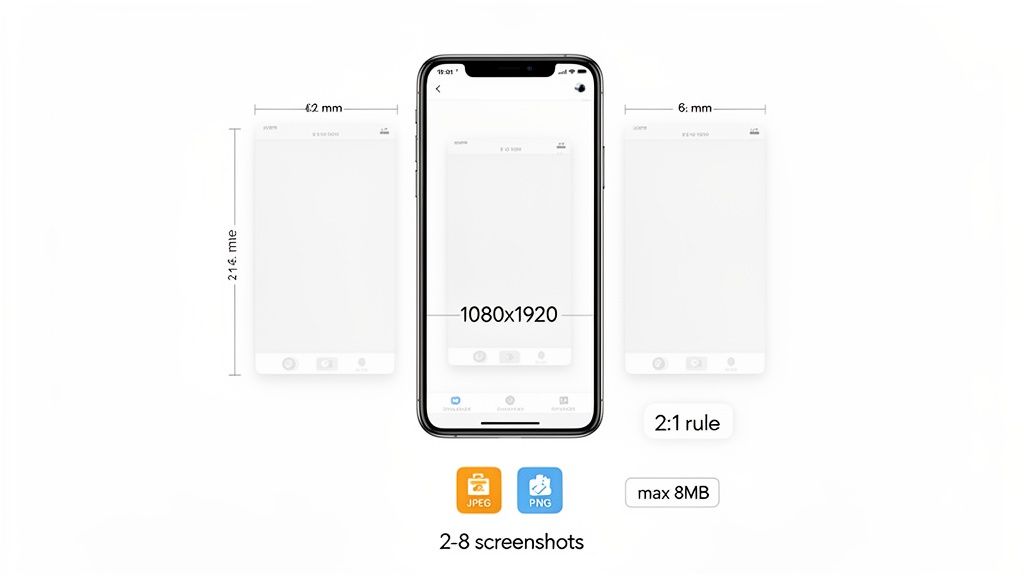
Google requires a minimum of two screenshots but gives you up to eight slots. My advice? Use all eight. It's a huge strategic advantage that lets you build a visual story, walking users through your app’s best features and benefits. This alone can seriously bump up your conversion rate.
For file types, stick to either JPEG or 24-bit PNG. One critical detail trips people up all the time: your PNGs can't have an alpha channel, meaning no transparency. If you try to upload a PNG with transparency, you'll get an error. Also, keep each file under the 8MB max size, or the upload will fail.
Understanding Dimensions and Aspect Ratios
Google’s guidelines are built to be flexible enough for the entire Android ecosystem, but they are strict. Knowing the rules for dimensions is the key to avoiding a rejection during submission.
Here’s what you absolutely need to know:
- Minimum Dimension: Each side has to be at least 320 pixels.
- Maximum Dimension: No side can go over 3840 pixels.
- Aspect Ratio Rule: The longest side can't be more than twice as long as the shortest side.
That 2:1 aspect ratio rule is crucial. A standard portrait screenshot at 1080x1920 pixels is fine because 1920 is less than double 1080. But an image sized at 1080x2200 pixels would get kicked back, since 2200 is more than twice 1080. This rule is what stops your images from looking stretched and weird on different phones.
Stick to these constraints, and you can be sure your visuals will look sharp and professional on everything from a small budget phone to a massive flagship device. Consistency like that builds trust and just makes your app look better.
Creating High-Converting Mockups
Just uploading raw screenshots is a wasted opportunity. To drive conversions, present your UI inside professional device mockups with compelling captions. Use a design tool like Figma or a dedicated mockup generator to drop your screens into vibrant templates that match your brand.
For instance, a fitness app could place a screenshot onto a dynamic, energetic background with a bold caption like, "Track Your Progress, Crush Your Goals." Suddenly, a simple UI view becomes a powerful statement about what the user can achieve. Create a series of these, and you're not just showing what your app does, you are telling a story about what it can do for them.
Optimizing Screenshots for Tablets and Large Screens
Focusing only on phone screenshots is a classic mistake that can stunt your app's growth. Google is putting a heavy emphasis on user experience for tablets and large-screen devices like Chromebooks. If you ignore this, your app could get slapped with a warning telling users it isn't optimized for their device, a surefire way to kill a download.
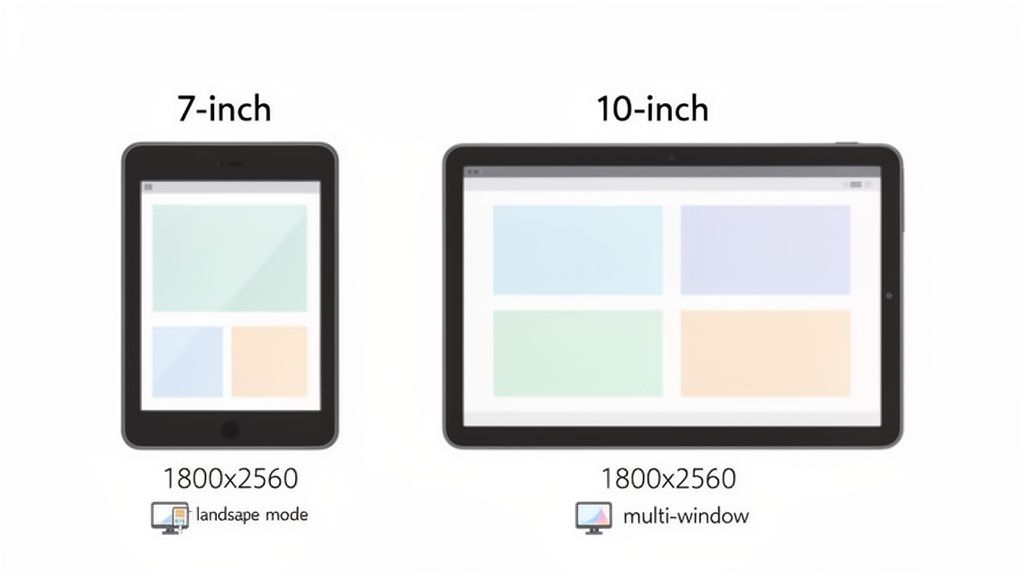
While phones get by with a minimum of two screenshots, Google demands at least four for tablets before your app is considered "optimized." This isn't just about checking a box; it's a strategic move. Tablet users are looking to see exactly how your app makes use of all that extra screen real estate. It’s your chance to show off key features like a slick landscape mode, multi-window support, or a more detailed, less cramped UI.
Key Tablet Screenshot Dimensions
To nail this, you need to create assets specifically for 7-inch and 10-inch tablets. You can't just repurpose your 9:16 phone screenshots and call it a day, as tablet layouts are completely different. Getting the google play store screenshot sizes right for these devices is non-negotiable.
Here are the specs you absolutely need to follow:
- 7-Inch Tablets: You'll want a resolution of at least 1200x1920 pixels. This keeps everything looking sharp on the smaller tablet screens.
- 10-Inch Tablets & Chromebooks: The sweet spot here is 1800x2560 pixels. This higher resolution is perfect for showing off detailed interfaces on larger displays.
- File Format: Same as with phones, stick to JPEG or 24-bit PNG (no alpha channel).
- File Size: Keep each screenshot under the 8MB limit.
Skipping these dedicated assets is a major red flag for both Google’s algorithm and your potential users. It signals that the experience will be subpar. For a deeper dive, check out our detailed guide on how to format screenshots for Android tablets.
Why This All Matters for App Growth
Ever since Google’s 2021 Play Console update, the rules for tablets have gotten much stricter, with that four-image minimum and a 1080px resolution floor becoming mandatory. This shift had a huge impact, especially in growing markets where tablet downloads surged once optimized visuals started highlighting powerful features.
While phones still drive most installs, apps that provide a solid mix of both portrait and landscape screenshots show much better cross-device appeal and send stronger retention signals to the Play Store algorithm.
Beyond the Phone: Designing for Wear OS and Android TV
The Android world is bigger than just phones and tablets. It extends to smartwatches and televisions, and if you want your app to show up there, you need to play by a completely different set of rules.
Getting your screenshots right for these platforms isn't just a suggestion, it's a requirement. Mess it up, and your app simply won't be discoverable for users on their TVs or watches.
Android TV: Think Like a Movie Theater
When someone's browsing the Play Store on their TV, they're in a lean back, cinematic mindset. Your screenshots have to match that vibe. Google is super strict about this, demanding a 16:9 aspect ratio to perfectly fit modern TV screens. This isn't negotiable. It ensures your app's visuals fill the entire display, with no ugly black bars or weird stretching.
Android TV Screenshot Specifications
You'll need at least one screenshot that follows these specs to get your app approved for Android TV. And don't forget, a separate TV banner is also a must have for your store listing.
- Dimensions: The absolute minimum is 1280x720 pixels. But honestly, you should be aiming for 1920x1080 pixels. Anything less will look fuzzy on a big HD screen.
- Aspect Ratio: It's 16:9. No exceptions.
- Content Focus: This is critical. The screenshots must show your actual TV user interface. Don't even think about submitting phone or tablet screenshots; they'll be rejected instantly.
Wear OS: Small Screens, Big Rules
Designing for a tiny watch screen is all about focus and clarity. Whether the display is round or square, every pixel counts. Because of this, Google's rules for Wear OS are even more rigid to keep the user experience clean and readable.
The biggest rule? No device mockups or frames. Seriously. Your screenshot should be just the raw UI of your app. Google enforces this to make sure the interface is the star of the show, allowing users to see exactly how your app looks and works on their wrist without any distracting fluff.
Your Wear OS screenshots must be pure UI. Google’s policy against device frames ensures that the user’s focus remains entirely on your app’s functionality, preventing any visual clutter on the small watch display.
Here are the technical specs you need to hit:
- Aspect Ratio: A perfect 1:1 square ratio is mandatory.
- Minimum Dimensions: Your images must be at least 384x384 pixels.
- File Format: Stick with JPEG or 24-bit PNG (no transparency), just like with other devices.
- Content: If your app has Tiles, you should definitely include a screenshot that shows them off. It's a key feature of the Wear OS experience.
Transforming Screenshots into Conversion Engines
Nailing the technical specs for your Google Play Store screenshot sizes is just the start. That's table stakes. The real win is turning your store listing into a conversion machine, and your screenshots are the single most powerful visual you have to get people to hit that "Install" button.
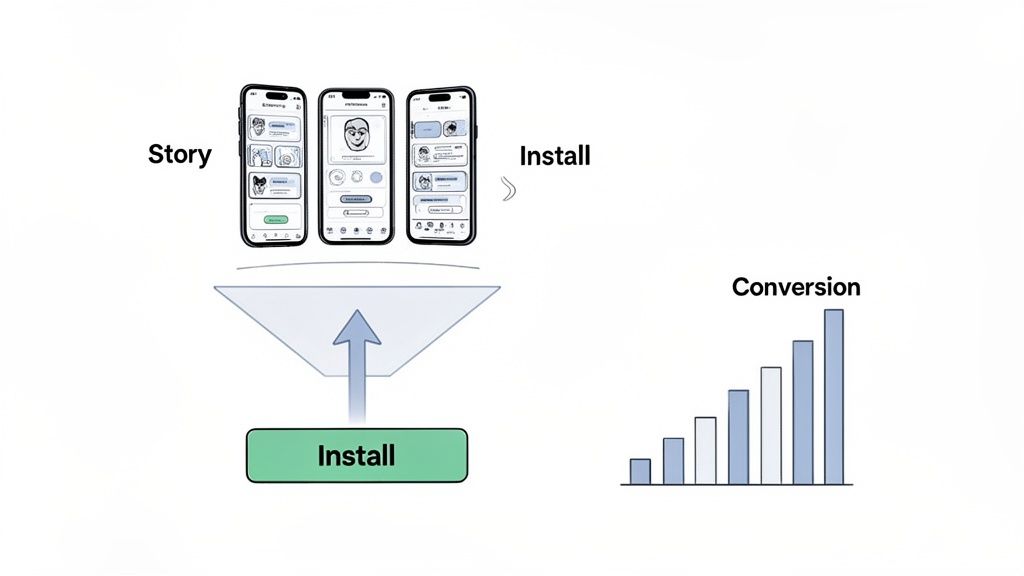
Think of your eight screenshot slots as a visual storyboard. The first one to three images are everything, since they’re often all a user sees without scrolling. This is your chance to show your app's core value in a single glance. Don't just show features, show the benefits. What problem are you solving for them?
When you get this right, you're not just showing pictures of your app. You're guiding a potential user through a story, answering their questions before they even ask them and building real excitement. It’s how you turn a casual browser into an engaged user.
Turning Visuals Into Downloads
The data doesn't lie: there's a direct line between the number of screenshots you use and how much users engage. Benchmarks have shown that Google Play apps with 6 to 8 screenshots see an average of 35% higher engagement compared to apps sticking to the two-screenshot minimum.
Why? Because people make snap decisions. You’ve only got about 8 to 12 seconds to make your case. A full gallery gives them a quick, complete picture that builds confidence and pushes them to act. You can dig deeper into these ASO benchmarks over on Gummicube.com.
This isn't just about quantity, either. Quality and context matter. Sharp, high res portrait shots (1080x1920px) showing clean UI flows work best on phones. But for games, landscape images (1920x1080px) can be a game changer for downloads, especially since they look perfect on Chromebooks. Every single screenshot is a chance to prove your app is worth their time.
Crafting a Compelling Narrative
To build a story that actually converts, you need a logical flow. I’ve seen this framework work time and time again to walk users from curiosity to installation:
- The Hook: Your very first screenshot has to grab them. Hit them with a powerful statement about what your app helps them achieve.
- The Features: Use the next few slots to show off the two or three killer features that deliver on that initial promise.
- The Proof: Build trust with a screenshot showing off user testimonials, awards, or big, impressive stats.
- The Ask: Your final image should be a clear, compelling call to action that seals the deal.
This approach does more than just put your UI on display; it builds a genuine connection and makes the value of your app feel real.
If you’re looking to pair a strong screenshot game with a broader ASO strategy, you might find some useful ideas at shortgenius. At the end of the day, investing time in a thoughtful screenshot strategy isn't just a creative exercise, it's a direct investment in your app's growth.
Automating Your Way to Perfect Screenshots
Trying to create stunning, compliant screenshots for every single device and language? It can quickly turn into a massive headache. Manually designing, sizing, and localizing dozens of assets is a slow, expensive grind that pulls you away from building your app. This is exactly where specialized screenshot generation tools are essential for growth.
These platforms were built to solve this one problem. They give you professionally designed templates and simple drag and drop editors, letting you create a complete set of high-converting visuals in minutes, not days. You can instantly generate perfectly sized assets for every required device without a designer and without memorizing every single one of Google's google play store screenshot sizes.
Building a Full Set Instantly
The whole process is remarkably simple. You kick things off by picking a template that fits your app's category and brand. From there, you upload your raw UI captures and just drop them into the device mockups. The real magic happens in the editor, where you can customize captions, tweak colors, and adjust fonts to tell a compelling story.
This example from ScreenshotWhale's editor shows just how easy it is. A clean UI capture gets dropped into a vibrant, branded template with a clear, benefit driven headline.
An approach like this removes all the technical guesswork. It guarantees every single image you export meets Google's strict guidelines for dimensions and file formats.
When you automate the technical side of screenshot creation, you can finally shift your focus from just meeting requirements to actually driving conversions. The goal isn't just compliance anymore, it's about crafting a visual narrative that convinces people to hit 'Install'.
With just a few clicks, the tool spits out every size you need for phones, tablets, and even wearables, all formatted and ready for the Play Console. For teams trying to scale, this kind of automation is a total game changer. This efficiency frees up your resources, letting you launch faster, test more often, and expand into new markets with almost no extra effort.
Going Global: Localization and Cultural Adaptation
If you're launching your app internationally, your store listing has to do more than just translate a few words. It needs to speak the local language, literally and visually. We call this localization, and it's a make or break step for getting traction in global markets.
This isn't just about swapping out your screenshot captions. Real localization means adapting your entire visual pitch to fit the cultural vibe of each new market. Colors, the style of imagery, even the features you choose to show off might need a rethink to connect with users in different parts of the world. Getting this right builds instant trust and makes your app feel like it was built just for them.
Building an Efficient International Workflow
Let's be real: manually redesigning screenshots for dozens of languages is a nightmare. It’s slow, wildly expensive, and just begging for mistakes. If you're serious about growing worldwide, you need an automated workflow.
The trick is to separate your design from your content. You create a single, on brand visual template that locks in your style. Then, you can simply feed in the translated text for each language without having to rebuild the entire graphic from the ground up every single time.
To really nail the translation part of this, tools like AI image translators are a game changer. They can automate the process of swapping out text that's baked directly into your images, which cuts down on manual work immensely and keeps everything consistent. It lets you get into new markets in a fraction of the time.
An automated localization process turns a painful, repetitive design task into a simple, scalable system. You can enter new markets fast, knowing your visuals are perfectly dialed in for every audience, without the headache of endless manual tweaks.
This approach doesn't just save a ton of time; it also ensures your google play store screenshot sizes and branding hold up perfectly across the globe. It transforms global expansion from a logistical bottleneck into a core part of your growth engine.
Got Questions? We've Got Answers
Diving into the nitty gritty of Google Play Store specs can bring up a lot of questions. I've been there. This section is all about giving you quick, clear answers to the most common sticking points, helping you get your assets right on the first try.
What Happens If I Only Upload Phone Screenshots?
If you only provide phone screenshots, your app will still show up on tablets, but it comes with a catch. Google will slap a warning on your listing telling users the app isn't optimized for their device. That little message can seriously tank a user's trust and is often enough to make them skip the download.
To sidestep this and make your app look great on bigger screens, Google really pushes for a dedicated set of at least four tablet screenshots. It's a small effort that pays off in credibility and conversions.
Can I Use the Same Screenshot for 7-Inch and 10-Inch Tablets?
Technically, you can if your image happens to meet the minimum dimensions for both. But you really shouldn't. It's just bad practice. The way an interface feels and flows on a 7-inch tablet is completely different from a 10-inch one.
The best move is always to create custom-designed screenshots for each. It shows you've actually thought about the user experience on every device, which builds confidence and can bump up your download numbers from tablet users.
Should My Screenshots Be Portrait or Landscape?
Simple rule of thumb: match the primary orientation of your app. That's it.
If your app is a game that’s almost always played in landscape, your screenshots need to be landscape. If it's a utility or social app designed for portrait mode, stick to portrait.
You can mix and match if your app works well in both orientations, but make sure the first few screenshots, the ones people see without scrolling, showcase the core, most common experience.
Pro Tip: Your screenshot gallery is a chance to tell a story. Even if your app is strictly portrait, you can get creative. Arrange those portrait shots inside a landscape-oriented canvas and add some killer captions. It creates a more cinematic, compelling narrative and is a fantastic way to stand out from the crowd.
Do Videos Replace Screenshots?
Absolutely not. A promo video is a huge asset for your store listing, but it's a supplement, not a replacement. You are still required to upload a minimum of two screenshots for phones and, if you want that "optimized" badge, four for tablets.
Think of them as a tag team. They have different jobs that work together:
- Video: It’s the hook. It grabs attention and gives a dynamic feel for the app's flow, perfect for showing off gameplay or a slick user journey.
- Screenshots: They're the quick scan summary. Users glance at these to judge your app's main features and UI in seconds.
The video reels them in, and the screenshots provide the detailed evidence that seals the deal.
Ready to create stunning, store-ready visuals without the headache? With ScreenshotWhale, you get access to professionally designed templates, a simple drag and drop editor, and an AI-powered translation engine to generate high-converting screenshots for every device and language. Stop wrestling with dimensions and start driving downloads. Try ScreenshotWhale today!
Every current size, one page
The 2026 screenshot dimensions for every iPhone, iPad, and Android device — with an editor that exports them all at once.
See all screenshot sizes