How to Create App Store Screenshots that Convert
Struggling with how to find screenshots on Android? Our guide shows you where to find them in your Gallery, Photos app, or file manager.
When you're launching an app, your screenshots are your storefront. The quickest way to showcase your app's best features is with high-quality, vibrant images created in an efficient editor. For app developers, a dedicated tool like a screenshot editor is where you'll find the assets that drive growth and conversions.
Where Your App Store Screenshots Are Hiding
Knowing where to find and how to create your screenshots is a core app marketing skill, whether you're saving a key feature, documenting a user flow, or gathering assets for your app store listing. While the basic process of taking a screenshot is straightforward, its final destination—and how you transform it—can make or break your app's success.
Of course, before you can find them, you have to take them. If you need a quick refresher on the button combos or gestures for your specific device, check out our complete guide on how to capture a screenshot on Android.
The good news? Most manufacturers have settled on a standard system. Once you take a screenshot, it's automatically saved into a dedicated 'Screenshots' folder inside your phone's internal storage. This folder is then picked up and made visible by user friendly apps like your gallery or a file manager.
In fact, industry data shows that over 80% of Android users rely on these built in apps as their primary way to find and manage screen captures. It's just the most direct and intuitive method.
The Most Common Hiding Spots
For the vast majority of users, the search for a screenshot ends in one of two places. The first and most convenient stop is almost always your phone's main photo viewing app.
This usually breaks down into two camps:
- Gallery App: If you're on a Samsung, OnePlus, or another device with a custom skin, you'll likely have a branded "Gallery" app.
- Google Photos: For Google Pixel phones and other devices running a cleaner, "stock" version of Android, Google Photos is the default.
In both scenarios, these apps are smart enough to automatically detect that 'Screenshots' folder on your device. They then present it to you as a clean, easy to find album, saving you the trouble of ever needing to dig through a complicated file system.
Quick Guide to Finding Screenshots on Popular Android Devices
Because the exact app name can vary, here's a quick cheat sheet to point you in the right direction depending on what phone you're using.
| Device Brand | Primary App | Typical Album/Folder Name |
|---|---|---|
| Google Pixel | Google Photos | Screenshots |
| Samsung Galaxy | Gallery | Screenshots |
| OnePlus | Photos or Gallery | Screenshots |
| Xiaomi | Gallery | Screenshots |
| Motorola | Google Photos | Screenshots |
This table covers the most common setups, so start with the listed primary app. In nearly every case, you'll find what you're looking for right there.
Finding Screenshots in Your Gallery App
Nine times out of ten, your phone's gallery app is the fastest way to get your hands on a screenshot. This is mission control for all your photos and videos, designed so you don't have to go digging through a complicated file system just to find what you need.
For most folks, finding a screenshot is just a couple of quick taps. Thankfully, manufacturers have pretty much standardized this process. Whether you’re on a Google Pixel, a Samsung Galaxy, or another popular Android phone, the experience is going to feel familiar. You just need to know which app to open and where to look.
The Google Photos app is the default for a lot of phones, especially ones running stock Android like the Pixel series. Its interface does a great job of keeping your media tidy.
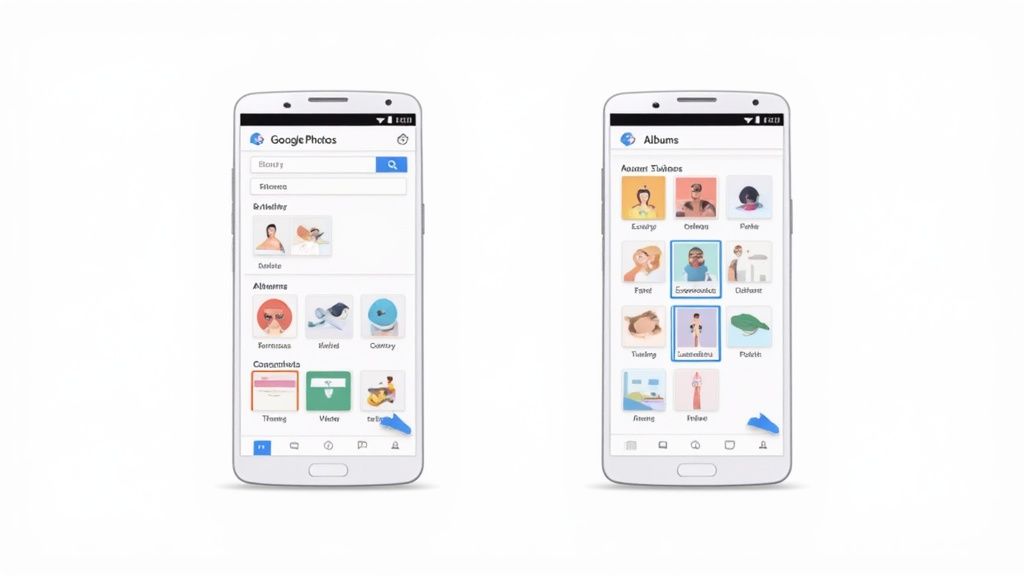
As you can see, Google Photos sorts everything into albums, making it super simple to spot your "Screenshots" folder.
Navigating to Your Screenshots Folder
The exact steps can vary a tiny bit depending on your phone's brand and its gallery app, but the logic behind it is the same across the board.
For Google Pixel or stock Android users:
- Open the Google Photos app.
- Tap the Library tab at the bottom right.
- Under the 'Photos on device' section, you’ll see a folder clearly labeled Screenshots.
For Samsung Galaxy users:
- Open the Samsung Gallery app.
- Tap on the Albums tab at the bottom.
- Look for the Screenshots album and tap it.
Other brands like OnePlus and Xiaomi follow a nearly identical pattern in their own gallery apps. This whole process is also quite similar if you need to know how to screenshot on an Android tablet, since the gallery apps work in much the same way.
Your phone's gallery app is smart enough to automatically detect and sort new screenshots. This means you almost never have to hunt them down manually; a dedicated album is almost always waiting for you.
Eventually, this becomes pure muscle memory. Once you're familiar with your gallery's layout, you'll be able to pull up any screenshot in a flash.
Getting Your Hands on the Raw Screenshot Files
Your gallery app is perfect for a quick look or a share, but sometimes you need the actual file. Maybe you're bulk uploading assets for a project or attaching a specific screenshot to a support ticket. That’s when a file manager comes in handy. It lets you dig into your phone's storage and manage the files directly.
Every Android phone has one. If you’re on a Google Pixel, you'll be using Files by Google. On a Samsung device, it’s called My Files. Think of them as the Android equivalent of Windows Explorer or macOS Finder. They give you a raw, folder level view of everything on your device.
Finding the Screenshot Folder Path
Once you’ve opened your file manager, you just need to know where to look. Thankfully, Android is pretty consistent here, so you won’t have to go on a wild goose chase. The folder is almost always in one of two places.
Your first stop should be the Pictures folder. It's the most common spot on modern devices.
Internal Storage > Pictures > Screenshots
If you don't see it there, especially on an older phone, check the DCIM folder. That’s where your camera photos live, and sometimes screenshots end up there too.
Internal Storage > DCIM > Screenshots
Start with the Pictures path. Nine times out of ten, that's where you'll find them.
Knowing this direct file path is a game changer. It’s perfect for moving all your screenshots to an SD card to free up space, or for grabbing the original files when you need to send them without any compression.
This direct access gives you total control. You can see the file size, resolution, and exact creation time. For an app team, this is non negotiable. When you're gathering screenshots for a new app store listing, you need the original, high quality PNGs, and the file manager is the best way to grab them.
What to Do When Screenshots Disappear
That sinking feeling when you can't find a screenshot you know you just took is all too real. Don't panic, though. More often than not, it has not vanished into thin air. It’s just hiding.
Before you assume it's gone for good, pop open your gallery or file manager and try a quick search. Most Android phones name these files with a standard prefix. Just typing "Screenshot_" into the search bar is surprisingly effective at digging up a file that got accidentally moved.
Check the Trash (Your Digital Lifesaver)
If a quick search comes up empty, your next move should be the trash or bin folder. This is a total lifesaver. Most gallery apps give you a grace period, holding onto deleted files for a while before they’re gone forever.
- Google Photos: Jump into the app, tap on the Library tab at the bottom, and then head into the Bin. You've got a generous 60 days to rescue anything from here before it's permanently wiped.
- Samsung Gallery: Open the Gallery, tap the three line menu icon, and select Trash. Samsung gives you a solid 30 days to recover deleted photos and videos.
Sometimes, just knowing where to look is half the battle. This chart breaks down the most common places Android stashes your screenshots.
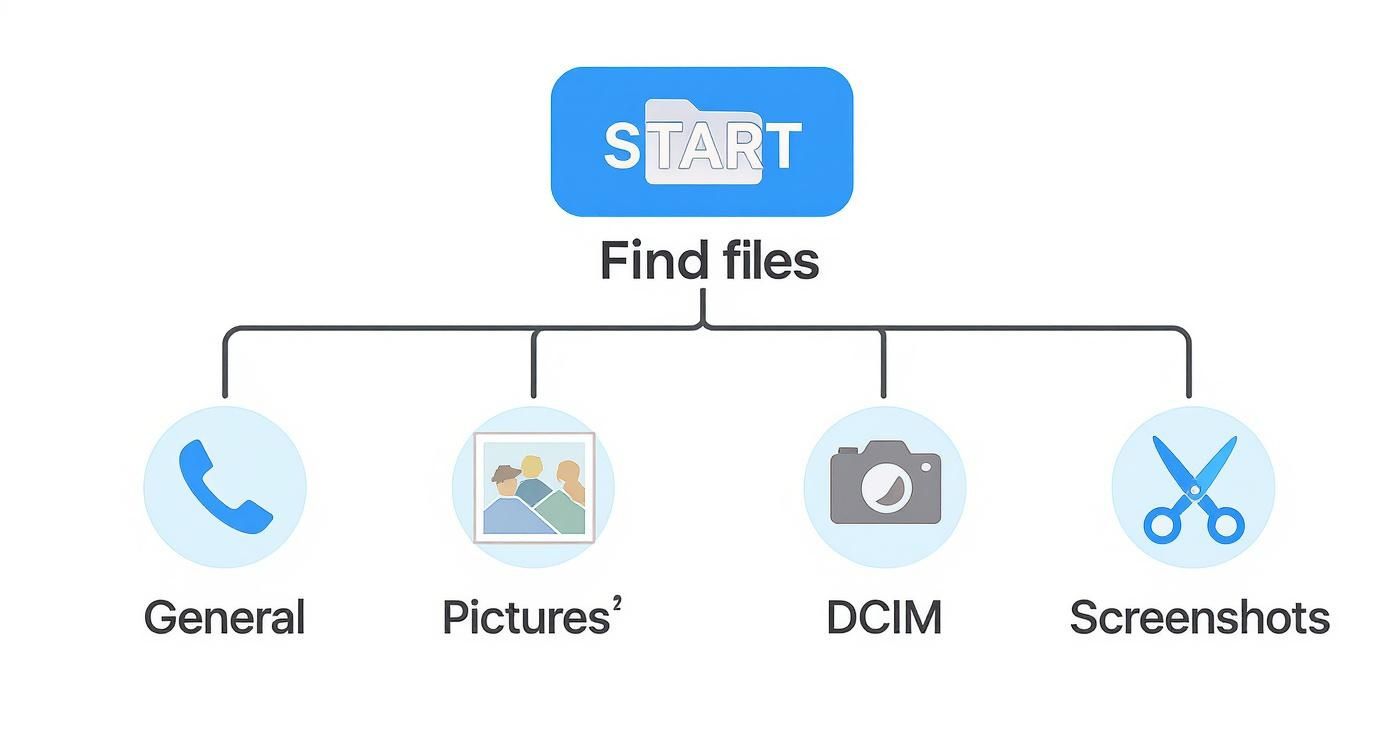
As you can see, the main Pictures/Screenshots folder is the primary spot, but don't forget to check inside the DCIM directory if you're still coming up empty.
One more pro tip: check your cloud backups. If you have Google Drive, Dropbox, or OneDrive set up to auto sync your photos, there's a good chance a copy of your screenshot is safe and sound up there, even if you deleted it from your phone.
By methodically checking these few key spots, you’ll almost always track down that missing screenshot.
Organizing Screenshots for App Store Success
For app developers, knowing how to find screenshots on Android is just step one. The real work and the real payoff comes from organizing those captures into a powerful conversion funnel for the Google Play Store and Apple's App Store. A sharp visual strategy isn't just nice to have anymore; it's absolutely essential for growth.
Before you even think about design, you need to know who you're designing for. Taking the time to identify your target audience is the foundation of everything. It's how you make sure your visuals actually connect with the right people. Once you have that locked down, you can start building a visual story that gets them to hit "Install."
Creating a High-Converting Visual Narrative
Start with a smart naming convention. It sounds simple, but it brings order to the chaos. A structure like AppName_Feature_Screen1.png makes every file instantly recognizable, which is a lifesaver when you're working with a team or juggling dozens of assets. For example, using a site editor's batch processing feature, you can rename a whole set of localized screenshots for the German market in seconds, from Welcome_EN_1.png to Welcome_DE_1.png. This is a practical, time saving insight.
Shared cloud folders are another non negotiable for team collaboration. Using Google Drive or Dropbox creates a single source of truth, so everyone has the latest approved visuals. No more digging through old email threads or Slack messages trying to find the right version. This is how you keep your brand consistent and your workflow sane.
Your first few screenshots are your make or break moment. Studies show that 90% of users don't even bother scrolling past the third image. Get this right, and you can see conversion rates jump by 20–35%.
Finally, you have to play by the rules. Both Google and Apple have very specific guidelines for resolution, aspect ratio, and file formats. Getting these wrong can get your app update rejected. Using a dedicated tool can take the guesswork out of this, ensuring your visuals are perfectly optimized from the get go.
For a complete rundown of the technical specs, check out our guide on app store screenshot requirements. By combining a smart workflow with compelling design, you can turn simple screenshots into your most powerful assets for driving downloads.
Of course, even with the best instructions, you can run into weird situations that leave you scratching your head. Let's tackle some of the most common questions that pop up when you're hunting for screenshots on your Android device.
"Help! My Screenshots Suddenly Vanished from My Gallery!"
This is a classic and thankfully, it's usually an easy fix. If your screenshots stop showing up in your gallery app, the likely culprit is a tiny, hidden file called .nomedia.
Sometimes an app (or you, by accident) creates this file in your Screenshots folder. Its only job is to tell media apps like Google Photos or your phone's gallery to completely ignore that folder. Sneaky, right?
Here’s how to fix it:
- Open up your file manager (like Files by Google or My Files on Samsung).
- Navigate to
Internal Storage > Pictures > Screenshots. - Look for a file named .nomedia. If you see it, just delete it. Poof.
After you've deleted the file, you might need to give your gallery app a little nudge to get it to rescan everything. The quickest way is to head to your phone's Settings > Apps, find your gallery app, and clear its cache. This forces a refresh, and your screenshots should pop right back into view.
"Can I Change Where My Screenshots Are Saved?"
The short answer is not really. Android is pretty rigid about this. By default, it’s hardwired to save all screenshots to the Internal Storage/Pictures/Screenshots path.
Changing that default location would require rooting your device, which is a whole other level of technical tinkering that we wouldn't recommend for most people. It's complex and can introduce security risks.
But there is a clever workaround. You can use an automation app to watch your Screenshots folder. Just set up a rule that says, "Hey, whenever a new image appears in this folder, automatically move it to my 'Awesome Screenshots' folder on the SD card." It’s not a native solution, but it gets the job done without any risky business.
"Where Do Screenshots from Apps Like WhatsApp or Telegram Go?"
This one trips people up all the time. When a friend sends you a screenshot in a messaging app, it doesn't land in your main screenshot folder. To keep things from getting messy, each app keeps its media tucked away in its own private folder.
So, if you're looking for an image you received on WhatsApp, you’ll need to fire up your file manager and dig a little.
- For WhatsApp, check
Internal Storage > WhatsApp > Media > WhatsApp Images. - For Telegram, you'll find a similar path, usually
Internal Storage > Telegram > Telegram Images.
Knowing this simple trick saves you from frantically scrolling through your own camera roll, wondering where that important image went.
Ready to create stunning, high-converting visuals for your app in minutes? With ScreenshotWhale, you can access professionally designed templates and a simple drag and drop editor to produce on brand screenshots that meet all App Store and Google Play guidelines. Start designing for free today!
Generate your store screenshots in minutes
Upload raw app screenshots and let AI produce polished, localized App Store and Google Play sets.
Try the generator free