Your App Store Screenshot Guide to More Downloads
Boost your app downloads with our complete app store screenshot guide. Learn to create high-converting visuals for iOS and Android that actually work.
Your app store screenshots are your single most powerful sales tool. Think of them as a visual pitch that can make the difference between a download and a user scrolling right past. Get them right, and you can seriously boost your app's growth and conversions by telling a compelling story in just a few seconds. This guide provides actionable insights on creating efficient, high-converting screenshots for both the iOS and Android stores.
Why Screenshots Drive App Store Growth
In a marketplace as crowded as the App Store or Google Play, screenshots are so much more than just images. They are a critical conversion tool. Potential users make snap judgments. Your visuals are often the first, and sometimes the only, thing they really look at on your product page. This makes every single screenshot a direct opportunity to show your app's value, build trust, and convince someone to tap 'Get'.
This visual narrative is the bedrock of any solid App Store Optimization (ASO) strategy. It directly shapes how users perceive your app and sets the stage for higher conversion rates. By turning simple screen grabs into a compelling story, you guide people from recognizing a problem to seeing your app as the obvious solution.
The Power of a First Impression
You have an incredibly small window to grab a user's attention. Well optimized screenshots can increase app page conversion rates by 20% to 35%. That's a massive lift, especially when you realize developers often have less than seven seconds to convince someone to install. If you want to dig into the data, you can discover more insights about app screenshot impact on conversion rates.
This statistic highlights a crucial truth: screenshots are not a design afterthought. They are a primary driver of app store growth with a direct line to your bottom line. They work by:
- Grabbing Attention Immediately: Vibrant colors, clear typography, and a strong visual hierarchy make your app pop in search results and on its product page.
- Showcasing Core Value: Great screenshots don't just show features; they articulate the benefits of those features. They answer the user's fundamental question: "What's in it for me?"
- Building Instant Trust: Polished, professional, and accurate screenshots signal a high quality app. This visual consistency assures users that what they're seeing is reliable and well maintained.
A great screenshot doesn't just show what your app looks like; it shows what the user's life will look like with your app in it. The focus should always be on the benefit and the outcome.
Key Elements of a Winning Screenshot Strategy
To turn your screenshots into a conversion machine, you need a clear plan. Each screenshot should be a tiny billboard advertisement. It has to be concise, compelling, and crystal clear. Every element, from the background color to the caption, must serve a purpose.
Here's a breakdown of what that looks like in practice. This table outlines the core components that come together to create a powerful screenshot set.
Elements of a High-Converting Screenshot Strategy
| Component | Objective | Key Action |
|---|---|---|
| Visual Hierarchy | Guide the user's eye to the most important information first. | Use bold captions, highlighted UI elements, and contrasting colors to create a clear focal point. |
| Compelling Copy | Communicate benefits, not just features, in a few powerful words. | Write short, action oriented headlines that solve a user's problem (e.g., "Plan Your Week in Seconds"). |
| Brand Consistency | Reinforce your brand identity and build recognition. | Use your brand's color palette, fonts, and tone of voice consistently across all screenshots. |
| Storytelling | Create a narrative that walks the user through your app's value. | Arrange screenshots in a logical sequence that introduces a problem, presents a solution, and shows the reward. |
Ultimately, this guide will walk you through how to blend these components effectively. Once you master these visual and messaging principles, you can create a powerful, persuasive storefront that not only looks great but actively drives downloads and fuels your app's growth.
Before you can wow users with killer designs, you have to get past the gatekeepers: the App Store and Google Play technical requirements. Getting your screenshots approved and looking sharp on every device starts with knowing the specific rules for size, format, and quantity. This is not just busywork. It is the first step to a professional looking app page that builds trust from the get go.
Each platform has its own playbook, and while it might seem a bit complex at first, mastering these rules saves you from the headache of a rejected app update. More importantly, it ensures your app looks its best, no matter what device a potential user is on.
Core Specifications for iOS and Android
While your creative strategy might be similar across both stores, the technical details for submitting screenshots are worlds apart. Apple and Google have their own distinct requirements for everything from image dimensions to how many you can upload. A one size fits all approach just won't fly here.
Take Apple, for example. They now require you to submit screenshots for the largest modern iPhone and iPad Pro sizes. Their system then automatically scales them down for older, smaller devices. This might sound easier, but it means your source images have to be pristine; otherwise, they’ll look pixelated and unprofessional when resized. We've got a full checklist to help you nail this in our detailed guide on app store screenshot requirements.
The most common reason for screenshot rejections is a simple mismatch in pixel dimensions. It sounds obvious, but Apple and Google are constantly updating their specs for new hardware, so always, always double check the latest rules before you even think about opening a design tool.
To help you get started, here's a quick reference comparison to understand the key technical requirements for submitting screenshots to each major app store.
iOS App Store vs Google Play Screenshot Specifications
Use this quick reference comparison to understand the key technical requirements for submitting screenshots to each major app store.
| Specification | Apple App Store (iOS) | Google Play Store (Android) |
|---|---|---|
| Maximum Uploads | Up to 10 screenshots per localization. | Up to 8 screenshots per device type (phone, tablet). |
| Required File Types | Flattened JPG or PNG format. No transparency. | 24 bit PNG or JPG format. No alpha transparency. |
| Key Size Mandate | Requires 6.9-inch iPhone and 13-inch iPad sizes. | Minimum dimension of 320px; maximum of 3840px. |
| Orientation | Supports both portrait and landscape orientations. | Supports both, but must be consistent for the device type. |
This table covers the basics, but there's a bigger strategic shift happening that you need to know about.
The New Role of Screenshots in App Store Discovery
Apple is always tweaking its platform, and a recent change has completely redefined how your screenshots affect your app's visibility. For iOS, you now must submit a 6.9-inch iPhone screenshot and a 13-inch iPad screenshot for all new apps and updates. The old 5.5 inch format is on its way out.
But here’s the real game changer: Apple's algorithm now pulls text directly from your screenshot captions and uses it as keyword metadata. This is huge. Your screenshots suddenly influence not just conversions but your app's actual search ranking. To dig deeper into this, check out these ASO findings from SplitMetrics.
This shift makes your caption copy more critical than ever. The words on your images are not just for users anymore; they're for the App Store's ranking algorithm, giving you a powerful new lever for ASO.
Here's how to think about it:
- Keyword Integration: Weave your most important keywords into your captions. Do not stuff them in. Make it sound natural, but make sure they're there. This helps you show up in more searches.
- Benefit Driven Text: The core rule of good copy still applies. Focus on clear, benefit oriented messaging for users, but now do it with an awareness of the keywords you're targeting.
- Dual Purpose Design: Every screenshot now does double duty. It has to persuade a human to download and feed the ASO algorithm with relevant terms to get discovered in the first place.
By getting a handle on these technical rules and understanding their strategic impact, you can ensure your screenshots don't just get approved. They become a core part of your growth engine. It's all about balancing the rules with a smart strategy to turn them to your advantage.
Designing Screenshots That Actually Convert
Great screenshots do more than just show off your app's interface; they tell a compelling visual story that actually drives downloads. While getting the technical specs right gets you in the door, it's the creative design that convinces people to stick around. This is where you shift from taking simple screen grabs to crafting strategic marketing assets.
The goal here is to build a narrative across your entire screenshot set. You're guiding the user from identifying a problem they have to seeing your app as the perfect solution. Each image needs to build on the last, creating a persuasive flow that ends with a confident tap on the "Get" button.
Establish a Strong Visual Hierarchy
Visual hierarchy is all about controlling where the user looks first. You have a split second to grab their attention, so you need to direct their eyes to the most important message on each screenshot. Without a clear focal point, all they see is a jumble of UI, and they'll lose interest fast.
A simple and incredibly effective technique is to use a bold, oversized caption at the top. This immediately tells them the core benefit. Follow that up with a clean device frame showing the relevant UI, and maybe a subtle visual cue like a colored circle or arrow to highlight the specific feature in action.
- Lead with the Caption: Make your headline the hero. It should be the biggest, most prominent thing on the screen.
- Frame the UI: Put your app screen inside a modern, clean device frame. It gives context and looks way more professional.
- Guide the Eye: Use subtle design elements like highlights or zoomed in sections to draw attention to the most critical part of the UI.
This structure creates a super easy to scan visual path: benefit first, proof second.
Write Captions That Sell Benefits, Not Features
This is probably the most common mistake developers make. They write captions that just describe what a button does. But users don't care about a "Workout Tracker" feature; they care about "Tracking Your Workouts Effortlessly." The difference is subtle but incredibly powerful.
Benefit driven copy connects what your app does to a user's real world needs and desires. It answers their silent question: "How will this make my life better?"
Instead of listing what your app has, explain what your user gets. A feature is a tool; a benefit is the result. People download apps for the results.
For example, a meditation app could go from a feature focused caption like "Guided Meditations" to a benefit focused one like "Find Your Calm in 5 Minutes." The second one speaks directly to the user's goal, making it far more compelling. A great way to get started is by using an app store screenshots template that structures your design around these kinds of benefit driven headlines.
Master Your Color and Typography
Your screenshots are an extension of your brand. The colors, fonts, and overall style should feel instantly familiar to anyone who's seen your app icon or other marketing. This kind of consistency builds trust and makes your product page look polished and professional.
Pick a vibrant background color that makes your screenshots pop without clashing with your UI. Your brand's primary or secondary colors are usually a safe bet. For typography, choose a font that is clean, legible, and reflects your app's personality whether that's playful, professional, or minimalist. For instance, in a screenshot editor, you can set a brand theme with your specific hex codes and font choices, applying it instantly across all designs.
To make sure your screenshots connect with what users expect to see today, it's worth checking out the latest ad creative trends. It can give you some great inspiration for color palettes and design styles that are proven to capture attention.
Build a Narrative Across Your Screenshots
Your screenshot gallery shouldn't feel like a random collection of screens. It needs to tell a coherent story. A great approach is a simple three act structure:
- The Hook (Screenshot 1): Start with your single most powerful value proposition. This first image is your most important asset, since many users won't scroll past it. It has to grab their attention and make it crystal clear what your app does.
- The Core Features (Screenshots 2-4): Now, introduce the key features that deliver on the promise you just made. Each image should highlight a different core benefit, showing the user how your app solves their problem.
- The Proof and Call to Action (Screenshot 5+): Use the final slots to build credibility. This is a great place to showcase social proof like awards or positive reviews, highlight advanced features, or end with a clear call to action that seals the deal.
When you design your screenshots with this narrative flow in mind, you create a guided tour that's both informative and persuasive, turning casual browsers into committed users.
Weaving Screenshots into Your ASO Strategy
Let’s get one thing straight: your screenshots are far more than just pretty pictures. They're an active, powerful lever in your entire App Store Optimization (ASO) strategy. Think of them as the visual muscle behind your keywords and conversion efforts.
When someone searches for an app like yours and sees compelling, benefit driven images in the results, they are dramatically more likely to tap through to your product page. It’s that simple. That initial tap is where the magic starts.
This boost in click through rate sends a massive positive signal to the store algorithms. It tells Apple and Google, "Hey, people searching for this term really like what this app is showing them." Over time, that feedback can directly contribute to better visibility and higher rankings, fueling app store growth.
The ASO Flywheel Effect
This is where things get interesting. Effective screenshots kick off a positive feedback loop. I call it the ASO Flywheel.
Better visuals lead to higher conversion rates on your page. Higher conversion rates signal to the stores that your app is a quality result, which can improve your rankings. Improved rankings bring more organic traffic to your page, which gives your awesome screenshots even more chances to convert. See the cycle?
This is precisely why treating screenshots as a core part of ASO is non negotiable. They don't just work on visitors who are already on your page; they actively help pull more visitors in from search results in the first place. You can dive deeper into this connection in our detailed article on what ASO stands for and how all these moving parts fit together.
A Practical Guide to A/B Testing Your Screenshots
Guesswork is the enemy of growth in a crowded app market. The only way to truly know which designs, captions, or feature highlights connect with your audience is to test them. A/B testing is how you move from "I think this looks good" to "I know this converts."
The process itself is pretty straightforward. You create two (or more) different versions of your screenshots and show them to different segments of your audience to see which one drives more installs.
Here’s a simple way to set up your first test:
- Start with a Hypothesis: Frame it as a clear question. For example, "Will screenshots with vibrant, solid color backgrounds convert better than our current lifestyle photo backgrounds?"
- Create Your Variations: Based on that question, design the new set of screenshots (Variation B). The key here is to change only one major element at a time, like the background, the caption style, or the UI you’re highlighting. That way, you know exactly what caused the change in performance.
- Run the Test: Use a testing platform to split your traffic. For Android, Google Play’s built in Store Listing Experiments is fantastic. On iOS, Apple’s Product Page Optimization feature is the tool for the job.
- Analyze the Results: Once you've gathered enough data, the platform will tell you which variation led to more downloads. Make sure you have a statistically significant winner before rolling out the change to everyone.
Do not just test the big, obvious ideas. I've seen conversion rates jump by double digits from something as small as tweaking a few words in a caption or changing the color of a device frame. Sometimes the smallest changes deliver the biggest wins.
Analyzing Results to Fuel App Growth
Once your test wraps up, the real work begins. If Variation B was the clear winner, go ahead and implement it on your main store listing. But don't just stop there.
The insights you gain from each test should be the fuel for your next hypothesis.
For instance, if solid backgrounds performed better, your next test could be, "Okay, which solid color converts best? Our primary brand color or a high contrast alternative?" This iterative cycle of testing, learning, and optimizing is what turns your screenshots from a static asset into a consistent engine for growth.
To see the bigger picture, think about how this fits into a modern multi-channel marketing strategy. By constantly refining your visuals based on what real users respond to, you ensure your app store page is a high performing asset that not only looks great but actively contributes to your bottom line.
Speeding Up Your Workflow with Advanced Tactics
If you've ever found yourself manually creating screenshots for a dozen different device sizes and languages, you know the pain. It's a soul crushing, repetitive task that can balloon into a massive time sink. The manual route is not just slow; it's a breeding ground for human error and tiny inconsistencies that chip away at your brand's polish.
This is where you need to stop thinking like a designer and start thinking like a system builder. Moving beyond the one by one creation process is essential for scaling. It frees up hundreds of hours, letting you focus on the high impact stuff like strategy and A/B testing instead of pixel pushing.
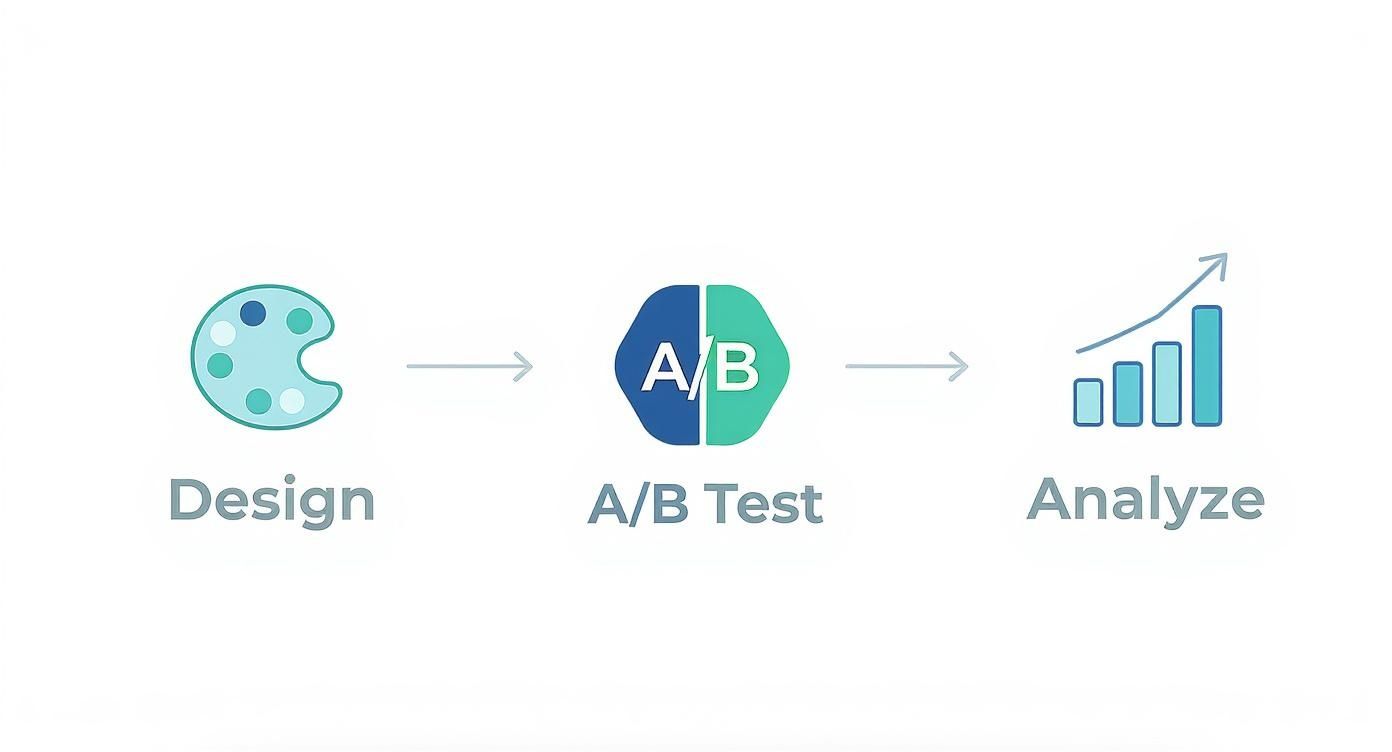
This loop design, test, analyze is the heart of screenshot optimization. It’s not a one and done task. It's a continuous cycle of improvement that directly fuels your app's growth on the stores.
Embrace Template-Based Automation
The single most effective way to streamline your screenshot production is to build a template based system. Forget designing each screenshot from scratch. Instead, you create one master template that locks in your layout, background, fonts, and device frames.
From there, it's just a matter of dropping in the new UI screen and typing a new caption. Simple.
This approach is a godsend for brand consistency. When it's time for an update, say, a rebrand or a UI refresh, you just modify the master template once. The changes then automatically cascade across your entire screenshot set. For teams juggling multiple apps or pushing frequent feature releases, this is a total game changer.
Tools like ScreenshotWhale are built entirely around this idea. They give you an editor to set up these master templates, effectively reducing all that repetitive design work to almost zero.
The Real Power of Smart Localization
Going global is about so much more than just translating text. You need to localize your entire store presence, and your screenshots are front and center. A user in Japan has fundamentally different cultural expectations than a user in Germany. True localization is not just about language; it's about adapting your visuals to meet those expectations.
Effective localization is not just translation; it's cultural adaptation. Simply swapping out text is the bare minimum. The best results come from adjusting imagery, colors, and even the features you showcase to resonate with each specific market.
To pull this off efficiently, your workflow needs to handle language variations within your templates. A great setup should let you:
- Import Translations in Bulk: Connect a spreadsheet or use an AI tool to populate captions for dozens of languages at once.
- Swap UI Screens Easily: Quickly sub in localized UI screens that show your app in the user's native language.
- Handle Different Text Lengths: Your design template must be flexible enough to handle text expansion. A caption that fits perfectly in English might break the layout in German.
For instance, a fitness app could highlight marathon training features for Western markets but pivot to group yoga classes in Eastern markets, reflecting local interests. This level of cultural nuance can give your conversion rates a serious boost in each region.
Taking It to the Next Level with an API
For large scale operations or apps with constantly changing content, a screenshot generation API is the ultimate efficiency tool. An API lets you programmatically create and update all your screenshots without ever opening a design tool.
Think about it. Say you run a travel app with seasonal promotions. You could write a script that automatically generates a fresh set of screenshots for your "Summer Deals" campaign, localized for 20 different countries, and pushes them live. When the campaign ends, another script just reverts to your standard evergreen set.
This programmatic approach is the final form of an optimized workflow. It completely eliminates manual bottlenecks and allows you to bake screenshot production directly into your development and marketing pipelines. It turns your ASO strategy into a well oiled machine.
Answering Your Top App Screenshot Questions
Even with a solid plan, you're bound to hit a few specific questions during the design process. I've seen these same uncertainties trip up developers and marketers time and again. Getting these details right is what separates a decent app page from a great one.
Let's walk through some of the most frequent questions I get, so you can finalize your visuals with total confidence.
Should My Screenshots Be Portrait or Landscape?
Simple rule: your screenshots should always mirror how people actually use your app.
If you’ve built a game or a video editor that’s meant to be used horizontally, your screenshots must be in landscape. For almost every other kind of app, portrait is the standard. It’s what users expect.
The core principle here is honesty. You're showing the app as someone will experience it the moment they open it. Both the App Store and Google Play support both orientations, but whatever you choose, stick with it. A jumbled mix of portrait and landscape shots looks messy and unprofessional, and that can erode the trust you’re trying to build before they even hit "install."
How Often Should I Update My App Store Screenshots?
A good rule of thumb is to update your screenshots whenever you ship a major UI redesign or a big new feature. You want your store listing to be an accurate preview of what’s inside. Showing an old, outdated interface is one of the fastest ways to frustrate new users and rack up bad reviews.
Beyond major updates, it’s smart to give your visuals a refresh every 6 to 12 months. Design trends move fast, and screenshots from a year ago can quickly start to feel dated. A regular refresh keeps your page looking modern and signals that your app is actively maintained a huge trust signal for potential users. Plus, continuous A/B testing can tell you exactly when a visual update might give you a nice lift in conversions.
What Is the Biggest Mistake to Avoid?
By far, the single biggest mistake is uploading plain, unedited screen captures directly from a device. Raw UI shots have no context, no story, and zero persuasive power. You’re leaving users to guess what’s important or valuable, and honestly, most won't bother.
Effective screenshots are marketing assets, not just functional previews. They need compelling captions, highlighted features, and an attractive design to tell a story. Forgetting this narrative layer is a missed opportunity to communicate your app's benefits.
Your screenshots are your best salesperson on your product page. They need to be designed to sell the experience, not just show an interface. For example, instead of a raw shot of a settings page, use a vibrant background, place the UI in a device frame, and add the caption "Customize in Seconds" to highlight the benefit of ease of use.
Can I Use the Same Screenshots for iOS and Android?
It's tempting to create one set and call it a day, but I strongly advise against it. Each platform has its own distinct UI language from status bars and fonts to navigation buttons. Showing an iPhone mockup on Google Play (or a Pixel on the App Store) instantly feels wrong. It can make your app seem lazy or unprofessional.
While your core message and value props can stay the same, the device frames and UI details should always feel native to the platform. It's a small detail, but it shows a level of care that users definitely notice. Thankfully, tools with platform specific templates make creating these separate sets much more efficient than it sounds.
Ready to create stunning, high-converting visuals without all the manual grunt work? ScreenshotWhale combines professionally designed templates with a simple editor, helping you generate on-brand screenshots for the App Store and Google Play in minutes. Stop wrestling with design tools and start driving more downloads today. Create your first set of screenshots at https://screenshotwhale.com.
Put this into practice on your own listing
Import your live app into an ASO workspace — metadata, keywords, competitors, and store screenshots in one place.
Import my app