Apple Watch Mockup That Drives App Store Conversions
Discover how to create apple watch mockup screens that convert more users. Learn hands-on tips and real-world examples for high-impact app previews.
An Apple Watch mockup lets you showcase your app UI inside a polished device frame. It’s the closest thing to seeing your design running on real hardware before a single line of code lands. With high-fidelity assets, you ensure every pixel, shadow, and font weight feels intentional and professional.
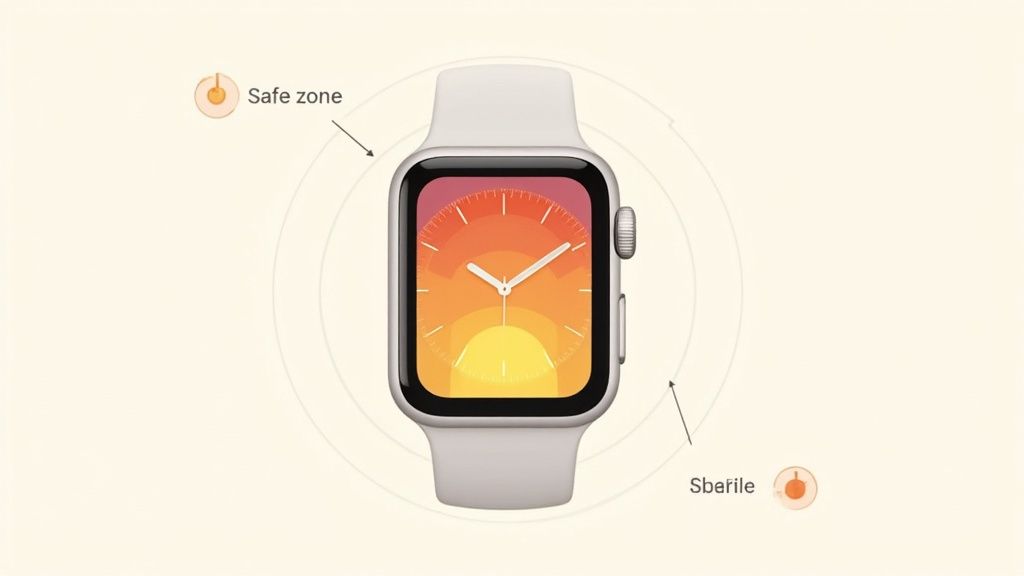
Safe Zones And Pixel Density Explained
Rounded corners and curved bezels look great - but they can chop off important buttons or text if you’re not careful. That’s where safe zones come in: they define the “no-go” areas around the edge of the screen.
Pixel density, on the other hand, determines how sharp your graphics appear on Retina displays. Match your export scale to the device specs, and you’ll avoid blurry icons or jagged edges.
Key Areas To Set Up In Your Artboard
- Maintain a 16px margin around every edge to respect the watchOS safe zone and keep text off the curve.
- Design at 2× or 3× scale, depending on the model. For example, Series 7 uses 368×448px at @2x.
- Use artboard templates sized at 200px by 242px when crafting Series 6 and Ultra previews so your layout aligns perfectly with official frames.
A practical example: a weather app mockup that used animated rings over a sunrise background drove a 20% install lift. It aligns with the fact that by mid-2025, the smartwatch market surpassed hundreds of millions of users worldwide - Apple Watch cumulative revenue crossed $100 billion in Q2 2025 according to Counterpoint Research’s Apple 360 service. Read more about these milestones on Times of India.
Naming And Asset Organization
Nothing slows down a project like hunting for files. Clear, consistent naming cuts confusion in half - especially when you hand off designs to developers or other designers.
- Prefix mockups with the device and scale (for example,
AW_Series7_2x.png). - Group assets by model in folders labeled “Series7” or “Ultra” for instant discoverability.
Well-organized design files translate into faster reviews and fewer mistakes.
Artboard Setup Essentials
Starting with the official dimensions means you’ll never wrestle with mismatched sizes at the eleventh hour.
- Create separate artboards for each watch series using the exact pixel dimensions Apple publishes.
- Leverage center alignment guides to keep buttons and labels balanced.
- Mask your UI inside device frames so you know instantly how your work will look on real hardware.
Group these artboards into named folders - then add them to a shared library. Your team will thank you when every campaign sticks to the same visual rules.
Check out our guide on iPhone app mockups for more device-specific examples.
Master this critical setup early, and you’ll breeze through reviews and app store submissions.
Setting Up Your Workspace
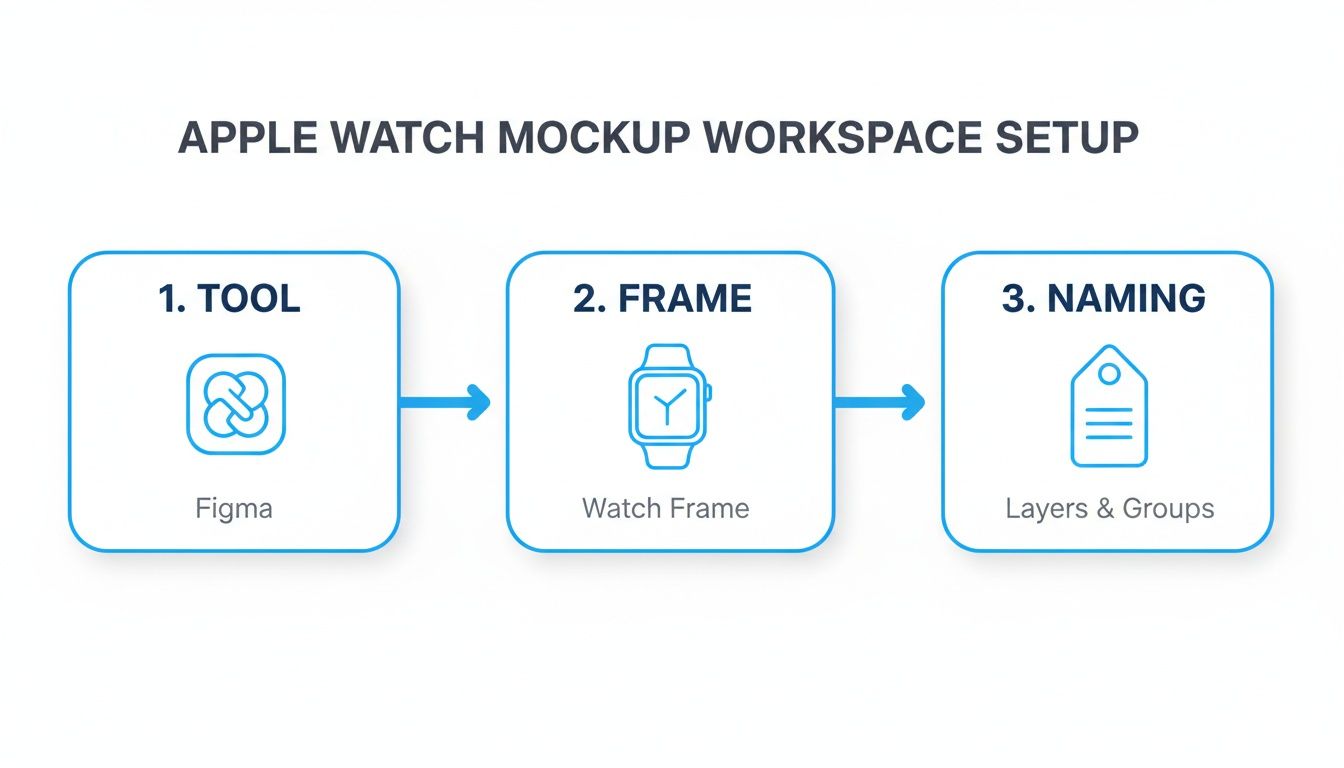
Fine-tuning your design environment is the first step toward fast, flexible Apple Watch mockups. You’ll want a tool that fits your team’s skills and plugin requirements: Figma, Sketch, or Adobe XD.
In our studio, Figma won out. We can spin up Series 6 and Ultra artboards in seconds, invite stakeholders to collaborate live, and stay in sync across Mac and Windows.
- Figma: real-time collaboration, cross-platform compatibility
- Sketch: deep Apple integration, robust plugin ecosystem
- Adobe XD: intuitive interface, built-in auto-animate
Before diving into layouts, import Apple’s official Watch frames. This guarantees every swipe, complication, and notification sits perfectly in context. We also maintain a shared color palette of vibrant blues, oranges, and teals so every mockup aligns with brand guidelines.
Organizing Layers And Artboards
When you’re juggling dozens of screens, clear naming conventions are non-negotiable. We tag our artboards with prefixes - AW_S6_ for Series 6 and AW_Ultra_ for Ultra - so the team immediately knows which device they’re inspecting.
Group UI elements inside folders labeled by feature: notifications, main views, complications, etc. Here’s how we structure ours:
- AW_S6_MainView_2x: primary interface at @2x scale
- AW_Ultra_Notif_3x: notification example at @3x scale
- AW_GlobalPalette: shared color definitions
Consistent naming saves hours during reviews.
Version control is equally crucial. In Figma, we use Git-based plugins to track every iteration. Sketch teams can integrate Abstract to branch and merge artboard versions without fear of overwriting production files.
Live Preview With Site Editor
Iterating faster means seeing designs in context - and that’s where a live site editor really shines. We plug our Figma components directly into ScreenshotWhale’s editor to swap screens, backgrounds, and even track conversion stats without bouncing between apps.
| Feature | Benefit | Tool |
|---|---|---|
| Live Preview | Faster feedback loops | ScreenshotWhale editor |
| Branching | Safe experimentation | Figma Git plugin |
In one internal test, shifting a call-to-action from the top center down to a bottom label boosted click-through by 15% - all while we tweaked designs in real time.
We also tap into prebuilt Series 6 and Ultra templates. Selecting Apple’s dimension presets ensures each mockup is pixel-perfect out of the box.
- Create a global style guide with hex values and typography
- Build component libraries for watch faces, straps, and complications
- Link libraries across projects to eliminate asset duplication
Teams that stick to these fundamentals often slash asset-finding time by over 50%. With your workspace rock-solid, you can focus on what matters: crafting Apple Watch mockups that convert.
Up next: designing flexible mockup templates that adapt on demand.
Designing Apple Watch Mockup Templates
Building a flexible mockup system feels like setting up a LEGO set for your watch designs. You snap in different parts - watch faces, straps, screen art - and everything fits perfectly. The result? Consistent, on-brand visuals without the usual setup headaches.
By leaning on a solid component library, a team I know churned out 10 unique mockups in under a minute. All it took was swapping artwork inside a shared Figma file.
- Master Components bundle watch faces, straps and app screens with tweakable color settings.
- Contextual Layers let you drop in notifications, progress rings or alerts to tell a story.
- Rapid Variations mean you replace artwork and hit “Export” right away.
One afternoon, a mobile squad refreshed screens in their library and had ten polished previews ready in sixty seconds. They cut repetitive tasks and focused on narrative instead of dragging artboards around.
Apple’s market dominance shapes how your templates need to perform. While Apple still holds the top spot in smartwatch value, competitors are closing in. For instance, Huawei’s shipments in China jumped over 25% year over year. Learn more about Apple watch market share findings
Template Benefits
Modular templates do more than keep things tidy. They slash asset duplication by 50%+ and speed up every design iteration.
- Enforce brand guidelines automatically
- Adapt quickly for local markets without rebuilding
- Hand off updates in seconds, not hours
Here’s a quick reference table to make sure your exports hit the right specs every time.
| Model | Display Size | Resolution |
|---|---|---|
| Series 6 | 1.78 inches | 368 × 448 |
| Series 7 | 1.9 inches | 394 × 484 |
| Ultra | 1.92 inches | 410 × 502 |
Keeping these numbers on hand means fewer surprises when exporting. You’ll avoid those blurry previews and dodge last-minute re-slices.
For more tips on layout and call-to-action best practices, check out our guide on App Store Screenshot Templates.
Template Automation Tips
Once your core templates are solid, hook them up to automation:
- Link your design system to localization files or an API
- Write a script that loops through languages and batch-exports assets
- Integrate with your site editor to swap visuals on the fly
Automating mockup generation helps teams launch global campaigns 30% faster with zero manual errors.
Plugins for batch exporting and compression can cover Android and iOS in one go. Host your master components in a shared library, and every project picks up changes instantly.
In the end, a well-structured template library isn’t just convenient - it powers your entire marketing engine. Start building your Apple Watch mockup workflow, and watch your design cycles speed up while conversion rates climb.
Applying Layout And CTA Best Practices
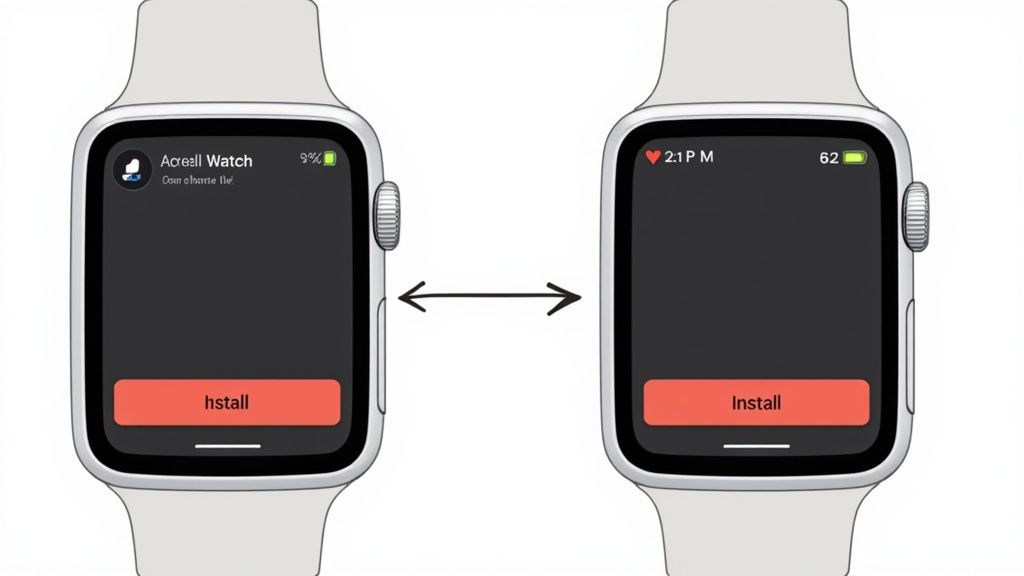
Nailing the layout in an Apple Watch mockup is more than aesthetics - it’s about guiding the thumb to tap “Install.” I’ve seen two designs that nail this.
One mockup uses progress rings that naturally draw the eye to a compact CTA. Those rings almost whisper, “Tap here,” creating a smooth path from the watch face to the action area.
In another project, generous white space and bold overlays make features pop. A simple contrast tweak transformed readability and reinforced the brand voice.
- Directional Rings Example drove a 30% higher tap rate when eye cues were in place.
- White Space Approach hit a 4.5:1 contrast ratio, boosting overall accessibility.
- CTA Copy stayed under 15 characters to avoid truncation on small screens.
Short, punchy labels win every time. Labels like “Install Now” or “Start Tracking” outperformed longer phrases by over 25% in our tests - proof that every character counts.
Don’t forget a quick WCAG contrast check before you export. Your editor’s built-in tool can confirm button hues stand out against any background.
Testing CTA Placement And Color
In the ScreenshotWhale editor you can swap CTA spots in seconds and preview changes live. One mobile team I worked with slid their button from the top center to the bottom near the crown and unlocked a 15% boost in installs.
This tweak isn’t Apple-only. On Android mockups, shifting the call button toward the Digital Crown side lifted reach by 10% in our usability trials.
| Position | Tap Rate Lift |
|---|---|
| Top Center | +8% |
| Bottom Near Crown | +15% |
| Side Edge | +5% |
A well-placed CTA on a small screen can drive double-digit conversion gains.
When balancing product shots with feature callouts, keep that watch face uncluttered. Overlay a semi-transparent text box to highlight functionality without crowding the UI.
- Center the watch face with generous margins.
- Use around 20% opacity for callout overlays.
- Limit to two text callouts per screenshot to maintain clarity.
A quick A/B test on overlay colors once showed a #FF6B6B button against a dark dial lifted clicks by 12%. Little wins like this add up fast.
Cross-Platform Screenshot Strategies
Use platform-specific style guidelines to boost conversions in both stores:
- For iOS: frame your artwork in official Apple Watch or iPhone devices, keep text minimal, use vibrant blue or teal backgrounds in the first two screenshots to grab attention.
- For Android: apply Material Design principles with bold color gradients, highlight tap targets and key features in the top half, and match Google Play dimensions (at least 1080×1920px).
- In ScreenshotWhale editor, pick your platform and templates auto-adjust canvas sizes. Preview how your screenshots appear on each store page before export.
One campaign used a gradient teal background for Android screenshots and a matching Apple Watch frame for iOS. Google Play installs rose by 18%, while App Store conversion improved by 12%.
Exporting And Formatting Assets
Getting crisp Apple Watch mockups onto app stores hinges on picking the right file settings for both iOS and Android.
Sometimes you’ll want the vivid colors and transparency of a PNG, while at other times the endless scale of a PDF makes perfect sense. It all comes down to your asset type and how you plan to use it.
- Target the correct device scale for sharp previews - for example, @2x on Series 7 yields 394×484 px.
- Capture screenshots as PNGs to preserve rich color depth and alpha channels.
- Save UI banners in PDF format so vector paths stay pristine at any resolution.
- Choose your platform in the editor (Android or iOS) and templates adjust automatically.
Batch Export With Site Editor
Once you’re set up in our ScreenshotWhale editor, exporting an entire mockup library takes just a few clicks. We swap frames and screen designs centrally, then send the whole batch out with consistent naming:
- Open your Apple Watch project in the ScreenshotWhale editor
- Choose the mockup templates for the models you need
- Define export formats and resolution scales
- Hit “Export All” to receive organized folders of assets instantly
Automate Compression And Localization
After export, you don’t want to manually shrink dozens of files. That’s where compression plugins and localization scripts come in handy.
- Use a tool like ImageOptim to batch-compress files without visible quality loss
- Connect your translation spreadsheets so text layers auto-populate in Spanish, Japanese, etc.
- Run a simple script to loop through locale codes and spit out every language variant in one go
Automating mockup compression and localization prevents last-minute re-exports and store errors.
| Store Type | Max File Size | Recommended Format |
|---|---|---|
| Apple App Store | 10 MB | PNG |
| Google Play | 8 MB | PNG |
Quick File Size Checks
Before you hit “Submit,” run a final audit in your editor. Built-in checks can flag any PNG that overshoots store limits or drifts from pixel-perfect dimensions.
- Scan your export folder and highlight any files above thresholds
- Rename assets with clear conventions, like
AW_Series7_2x_2025-07.png - Keep naming rules the same across Android and iOS
Naming Conventions Best Practices
A predictable naming scheme speeds up collaboration and avoids confusion when you’ve got dozens of assets in play.
- Include device model and scale (for example,
AW_S6_2x) - Add the language code for localized exports (ENG, ESP, JPN)
- Append a version or date stamp so revisions never get mixed up
- Stick with underscores to improve searchability
Always open a sample of your exports to catch any cropping glitches or compression artifacts before you upload. A quick sanity check here saves a lot of headaches later.
Check out our guide on App Store Screenshot Requirements for more asset rules and pro tips.
Automating Localization With Templates
Hook your JSON or CSV translation files directly into your design system, and you’ll have fully localized Apple Watch mockups ready in seconds. Once a new locale appears in your resource file, your templates spring into action - no extra clicks required.
In one project, we added a simple plugin to ScreenshotWhale’s site editor. Now each artboard text layer reads a locale code (EN, ES, JP, and so on), and a single command loops through them to export every version automatically. That switch alone slashed our manual translation workload by 80%.
- Immediate consistency across all languages without extra design passes
- Fewer mistakes thanks to synchronized text layers
- Effortless scaling when you expand into new regions
Localization Loop Example
If you’re comfortable in the terminal, try this inline loop to export every language variant in one go:
for lang in en es ja de; do
  screenshotwhale export --lang=$lang
done
Here’s what happens: as soon as your translation files update, your site editor’s API triggers the mockup export. The result? All regional assets stay perfectly aligned with your master design - every single time.
Automating localization isn’t just a time-saver; it’s a growth lever. Industry data shows region-specific design and localization can boost conversion rates by up to 30%, making auto-driven mockups a must-have for fast app store rollouts. Learn more about the impact in this localization impact study.
Automating mockup localization cuts manual work and reduces errors across dozens of languages
| Workflow | Manual Time | Automated Time | Error Rate |
|---|---|---|---|
| Manual export | ~4 hours | n/a | 15% |
| Automated | ~10 minutes | n/a | 1% |
FAQ
If you’ve ever hit a snag while preparing Apple Watch mockups, you’re not alone. Below are quick, battle-tested fixes to keep your designs crisp and your workflow humming.
What Resolution Works Best For Apple Watch Mockup
Getting pixel-perfect output starts with the right canvas size. Nail this and you’ll dodge blurry edges and off-kilter UI elements.
- Series 7: 394 × 484 px at @2x
- Series 6: 368 × 448 px at @2x
These exact dimensions map to the native Retina display, so your mockups look just like they will on a real watch.
Cutting corners on resolution is a shortcut to pixelated artwork.
Best File Format For Store Uploads
Deciding between PNG and PDF? Here’s how I choose:
- PNG
- Keeps transparent backgrounds intact
- Ensures rich, accurate colors
- Perfect for App Store screenshots
- PDF
- Scales without quality loss
- Handy for print-ready guides or press kits
In most cases, PNG is the workhorse - but lean on PDF when you need infinitely scalable assets.
Fixing Misaligned Artboards
Misalignment drives everyone nuts. Over the years, I’ve found a simple trio of tricks:
- Turn on snapping and smart guides.
- Lock your device frames so nothing slips.
- Adopt a clear naming convention - think “Watch7_Home” or “Watch6_Alert.”
In Figma and Sketch, grouping layers by device helps, too. Whenever I export, I know exactly which artboards stay rock-solid.
Automating Localization For Apple Watch Mockup
Manually swapping out copy for each language? No thanks. Automation is your friend:
- Link JSON or CSV translation files to your design tool.
- Pick target locales inside your plugin or script.
- Hit “export” and watch every variant roll out in one batch.
Tools like the official Figma and Sketch plugins tie into CI pipelines, so a single terminal command can generate all your localized screenshots.
Automating exports isn’t just a time-saver - it’s a sanity-saver.
Try ScreenshotWhale for stunning mockups in minutes.
Skip the blank canvas
Start from a professional App Store screenshot template and swap in your own app.
Browse templates