How to Design High-Converting App Store Screenshots
Struggling to find where your images are saved? Learn how to view screenshots on Android using the Gallery, Google Photos, or your file manager.
Took a screenshot for your app store page, but it's not driving downloads? We’ve all been there.
Luckily, creating efficient and high-converting app store screenshots is straightforward once you know the strategy. The goal is to move beyond simple screen captures and design visuals that tell a story and highlight value. For both the Android and iOS stores, this means using a dedicated editor to create neat, appealing imagery with vibrant colors that grab user attention and boost conversions.
Your Instant Guide to High-Impact App Store Screenshots
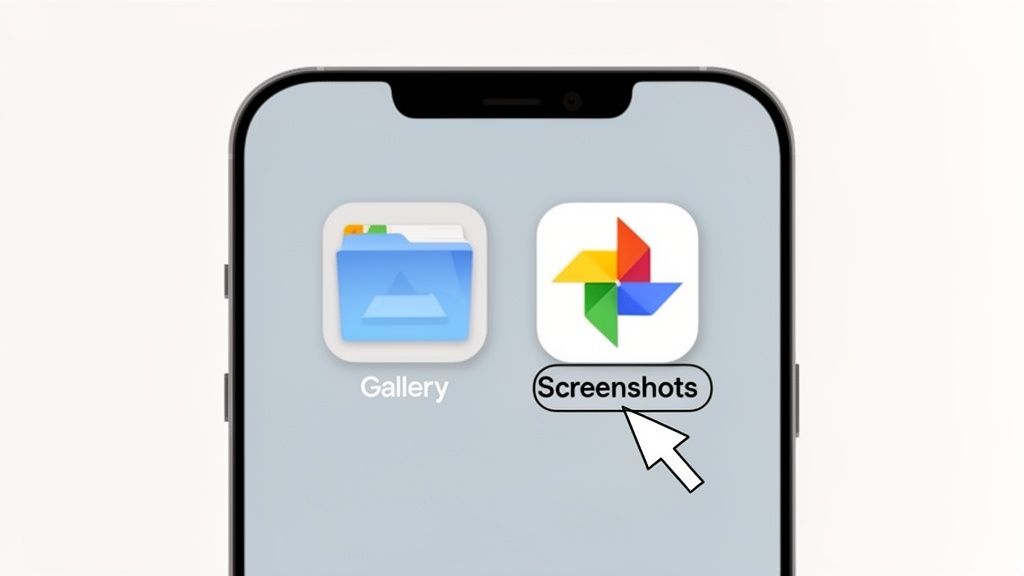
You have a fantastic app, but a raw screenshot of the UI just shows a screen. It doesn't sell the experience or the solution you provide. The good news is, you can transform these basic images into powerful marketing assets. The primary destination for this work is a screenshot editor, which helps you frame your app's best features in a compelling way.
Think of an editor as the central tool for your visual marketing. Whether you're targeting the Google Play Store or the Apple App Store, the principles are the same: create professional, benefit-driven visuals.
Before you start uploading, here's a quick rundown of the actionable insights that lead to better app store growth.
Quickest Ways to Improve Your App Store Screenshots
| Method | What to Do | Best for |
|---|---|---|
| Use Mockups & Captions | Place your UI in a device frame and add benefit-focused text. | Instantly making your app look professional and communicating value. |
| Tell a Visual Story | Arrange screenshots in a logical sequence that guides the user. | Showing how your app solves a problem from start to finish. |
| Maintain Brand Consistency | Use a consistent color palette, font, and layout across all images. | Building brand recognition and trust with potential users. |
These are your go-to options for creating a polished and high-converting app store presence.
Core Elements for High-Converting Screenshots
Your first stop should always be a screenshot design tool, which gives you the power to craft a narrative:
- Benefit-Oriented Captions: Instead of "Search Feature," say "Find What You Need in Seconds." A site editor makes it easy to add clean, readable text overlays that speak directly to the user's needs.
- Professional Device Mockups: Wrapping your UI in a sleek device frame (like an iPhone or Pixel) makes your app feel tangible and polished. An editor provides templates so you don't have to create these from scratch.
- Vibrant Backgrounds: A splash of color that aligns with your brand can make your screenshots pop against the plain white background of the app store.
This strategic approach is a huge time saver. Instead of just showing what your app looks like, you're demonstrating what it can do for the user. For a deeper dive, our guide on how to find screenshots on Android covers the basics of capturing the initial image.
Knowing how to frame your app's value is the key. Think of your screenshot set as a visual sales pitch, designed to answer the user's question: "Why should I download this?" This simple shift in perspective makes managing your app store creative effortless.
Your app's screenshot gallery is an organizational powerhouse for your marketing message. One of the best things you can do is create a cohesive visual story. This is a lifesaver for keeping your value proposition clear and distinct.

This narrative approach is incredibly effective. To build it, use an editor to plan your visuals. Start with your app's main benefit, then use subsequent images to showcase key features that support it. This becomes your blueprint for every screen you design.
But creating the visuals is just the beginning. The real magic for boosting app store growth is in using tools that streamline the process and ensure consistency.
Digging Deeper with a Screenshot Editor
Instead of fumbling with generic photo editing software, a dedicated screenshot site editor provides the functions you need to create high-converting assets in minutes.
- Template-Based Design: This is a game changer. A good editor provides pre-built layouts that are already optimized for the Google Play Store and Apple App Store. You just drop in your screen capture, type your benefit-driven text, and adjust the colors to match your brand.
- Bulk Generation: Need to create screenshots for multiple languages or device sizes? Instead of manually editing each one, you can use an editor to automate the process, saving hours of work.
- One-Click Mockups: Forget searching for device frame PNGs. A site editor lets you select a device (like an iPhone 15 or Google Pixel 8) from a menu and instantly applies the frame to your image.
Once you get the hang of these features, a screenshot editor stops being just a design tool and becomes a powerful engine for app store growth. It’s easily the fastest way to create efficient and high-converting app store screenshots for Android and iOS.
This streamlined process is about to get even better. For years, developers had to manually check every store's requirements. Thankfully, modern tools simplify this. When you use a template within a site editor, it's often already configured for the latest specifications. You can read more about this upcoming Android 16 feature to see how even the OS is moving toward cleaner workflows. It's a small change, but it makes keeping your assets compliant much easier.
Using a File Manager to Uncover Hidden Screenshots
Ever taken a screenshot only to find it's completely vanished from your gallery? It’s a frustratingly common scenario. The good news is, your image is almost certainly still on your phone. Usually, this isn't a major bug but a small hiccup, often caused by a hidden file telling your photo apps to simply ignore that folder.
When this happens, it's time to put on your detective hat and dig in with a file manager.
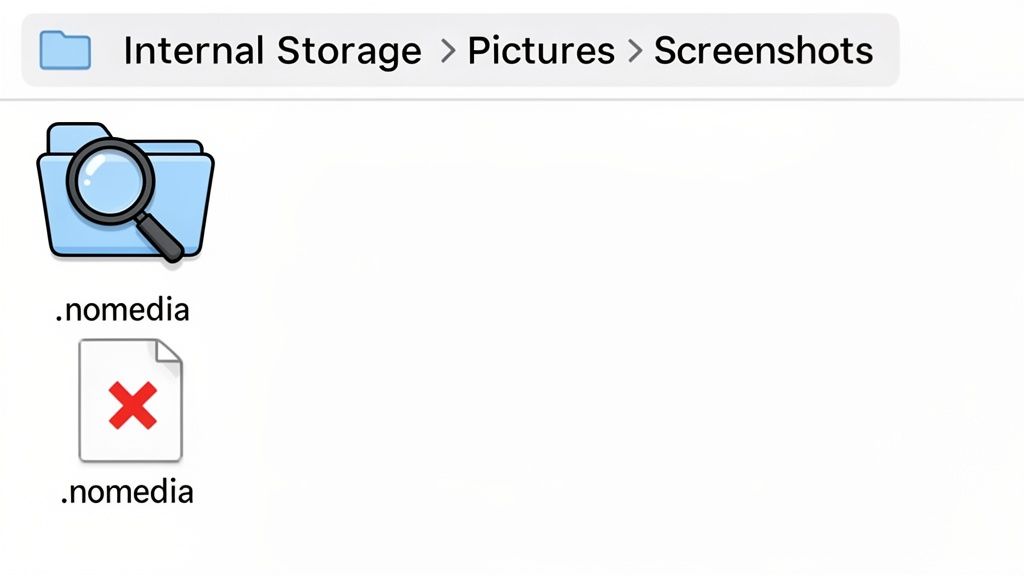
Apps like Files by Google or Samsung's built-in My Files are perfect for this. They let you browse your phone's internal storage directly, giving you a raw, unfiltered view of every file and folder, bypassing the pretty, organized world of your gallery app.
Navigating to the Default Screenshot Folder
To hunt down your missing images, you'll need to follow a specific folder path. Just open your file manager and tap into your phone's main storage.
- The most common path is:
Internal Storage > Pictures > Screenshots - Sometimes, you might find it here instead:
Internal Storage > DCIM > Screenshots
Once you're in the right place, you should see all your screenshot files listed. If you use an SD card, don't forget to check a similar path on the card, too. Your phone might be saving them there automatically to free up internal space.
The Mystery of the .nomedia File
So, what if you find all your screenshots in the file manager, but they still won't show up in your gallery? The culprit is almost always a tiny, hidden file named .nomedia.
A
.nomediafile is basically a "do not enter" sign for media apps. It tells your gallery, music player, and other apps to completely ignore all the files in that folder. Deleting it is the key to making your screenshots visible again.
To fix this, just long-press the .nomedia file in your file manager and hit delete. After a quick phone restart, your gallery app will re-scan everything, find the newly "unlocked" folder, and your screenshots should pop up right where they belong. It's a simple trick, but it's often the one thing that solves the "disappearing screenshot" problem for good.
From Finding Your Screenshots to Designing App Store Winners
Knowing how to find a screenshot on your phone is one thing. But for app developers and marketers, screenshots are a totally different ballgame. They're a core part of your business. The game shifts from just locating an image to strategically designing visuals that grab attention and drive downloads on the Google Play Store and Apple App Store.
Think about it: those first few images a potential user sees can be the difference between them tapping “Install” or swiping on to the next app.
This is where you need to become a visual storyteller. A simple, raw screen capture just won’t cut it. You have to quickly and clearly show what makes your app valuable using neat, appealing imagery.
Crafting Visuals That Actually Convert
To really move the needle on app store growth, every single screenshot needs to be designed with conversions in mind. That means leaving basic captures behind and using a site editor to make your presentation pop with vibrant colors and clear messaging.
- Go for Professional Mockups: Using a site editor, place your app’s UI inside a slick device mockup. It gives it an instant professional sheen. It feels more real, more tangible.
- Write Benefit-Driven Captions: Don't just list features. Use short, punchy text overlays to spell out the benefits. How will your app solve a user's problem or make their life better? An editor gives you full control over fonts and placement.
- Keep it Visually Consistent: Your screenshots should look like they belong together. A site editor allows you to create a template with a unified color scheme, font, and layout that reinforces your brand identity.
The real goal here is to make your app's purpose and appeal obvious in a split second. High-quality, benefit-focused screenshots build trust and are a direct line to more downloads and better app store growth.
Ever notice how top-performing apps use every visual slot they can? An analysis from February 2022 found that many popular apps feature an average of 7-8 screenshots, with games pushing that number to around 7.5. It’s clear that successful developers use all the space they're given to show off their app's best sides. You can dig into more of these app store trends over on Statista.
Pulling these elements together with a good editor can turn a simple screen grab into a seriously powerful marketing asset. If you need a hand with the technical side, take a look at our guide on how to upload a screenshot for app store listings. This is your best shot at turning a casual browser into a dedicated user.
Just throwing screenshots up on the app store isn't going to cut it. If you want people to actually download your app, you have to treat every single image as a critical piece of marketing. This is especially true for the first three screenshots. They're your primetime real estate.
Think of it as your app's first impression. You get a few seconds to convince someone you're worth their time. Effective App Store Optimization (ASO) starts with telling a clear, compelling visual story. Your screenshots need to have vibrant layouts and clean, readable text that instantly communicates what your app does for the user. Focus on the benefits, not just a laundry list of features.
Creating a High-Impact Visual Narrative
Your screenshots need to work together, like a short, punchy comic strip that walks a potential user from "What is this?" to "I need this!"
- Highlight Core Benefits First: Use a site editor to design those crucial first few images to show exactly how your app solves a real problem.
- Keep Your Brand Consistent: A uniform style, using your brand’s colors and fonts, makes your app listing look polished and trustworthy. It tells users you care about the details.
- Localize for a Global Audience: Don't forget to translate your text overlays for different regions. A good screenshot tool can help automate this, creating localized versions of your visuals in minutes.
The most successful app store pages answer a user's biggest question in seconds: "What's in it for me?" Clean, benefit-driven visuals are the fastest way to get to "yes" and drive real app store growth.
Getting the design right is only half the battle; you also have to nail the technical stuff. For example, Google Play has very specific sizing guidelines, and getting them wrong can get your submission kicked back. Phone screenshots need to be between 320px and 3840px wide, and you can upload between two and eight images, typically in a 9:16 portrait format. For a full rundown of the tech specs, this guide to Google Play screenshot sizes and requirements is a great resource.
Tools like ScreenshotWhale were built specifically to take this headache away, offering templates that are already compliant with store guidelines and an API to automate the whole creation process. For a deeper dive, check out our own guide on crafting the perfect Google Play Store screenshot.
Beyond just the visuals, a solid grasp of what makes people click "install" is key. If you're serious about turning views into downloads, exploring these actionable conversion rate optimization strategies will help you sharpen your entire approach.
Questions We Hear All The Time
Even after you know where to look, finding and managing screenshots can bring up some weird issues. Let's walk through a few of the most common snags people run into.
"Help! My Screenshots Aren't Showing Up In My Gallery."
This is a classic, and the culprit is usually one of two things. First, there's a sneaky hidden file called .nomedia that sometimes appears in the screenshots folder. Its only job is to tell gallery apps to completely ignore that folder. You can hunt it down and delete it with any decent file manager app.
The other common issue is a stuck media scanner. Your phone has a background process that finds all your photos and videos, and sometimes it just needs a kick. The simplest fix is a good old-fashioned restart. If that doesn't do the trick, you can force a full re-scan by clearing the cache for the "Media Storage" system app.
"Can I Change Where Screenshots Get Saved?"
On most standard Android phones, the answer is a hard no, at least, not without some serious, under-the-hood tinkering. Android usually locks the screenshot path to a specific folder in your phone's internal memory.
But there are exceptions. Some manufacturers, like Samsung, will sometimes give you an option in the settings to save new screenshots directly to an SD card if you have one installed. The other route is to use a third-party screenshot app from the Play Store. Many of those are built with flexibility in mind and let you pick a custom folder.
"How Do I Dig Up Really Old Screenshots?"
When you need to find that one specific screenshot from months or even years ago, a smart photo app is your best friend. In either your default Gallery or Google Photos, jump into the "Screenshots" album and look for a sort option. You can usually flip the order to "Date created: Oldest first."
This is where Google Photos really shines, though. Its search bar is incredibly powerful. You can type in things like "screenshots from October 2023," or even search for text inside the screenshot itself. It's a lifesaver.
Think of your cloud backup as the ultimate safety net. If you flip the switch to back up your screenshots folder in an app like Google Photos, those images are safe. They'll be accessible from any device, even if your phone gets lost or broken.
"Are My Screenshots Automatically Backed Up To The Cloud?"
This one trips a lot of people up because it depends entirely on your settings, and by default, the answer is often no.
You usually have to turn this on yourself. For example, in Google Photos, you need to head to Library > Photos on device, find your "Screenshots" folder, and make sure the "Back up" toggle is on. Other cloud services like Dropbox or OneDrive have similar settings where you have to specifically tell them to include the screenshots folder in their automatic uploads.
To significantly enhance your app store screenshots and drive maximum conversions, consider incorporating advanced concepts like strategies for dynamic image generation.
Ready to transform your basic screen captures into professional, high-converting app store visuals? With ScreenshotWhale, you can create stunning, on-brand screenshots in minutes using our drag-and-drop editor and professionally designed templates. Stop guessing and start converting—try it today at https://screenshotwhale.com.