A Complete Guide to iPad Screen Dimensions in Pixels
Get all iPad screen dimensions in pixels. Our complete guide covers every model's resolution, aspect ratio, and safe areas for pixel-perfect app design.
When you’re creating App Store screenshots, getting the exact iPad screen dimensions right is the first and most critical step. For a high-resolution display like the 12.9-inch iPad Pro, that magic number is 2048 x 2732 pixels. Nailing these dimensions from the start is how you create screenshots that look sharp, professional, and ultimately, get people to download your app.
Your Quick Reference Guide to iPad Dimensions
If you're an app developer or marketer, you know just how crucial understanding iPad screen dimensions is for App Store success. Get the pixel count wrong, and your beautiful screenshots turn into a blurry, stretched-out mess. That’s an instant red flag for potential users and a killer for your conversion rates. This guide is designed to give you a clear, no-nonsense overview of the data you actually need.
Let's start with a breakdown of the core display metrics you'll be working with: physical pixels, logical points, and the Device Pixel Ratio (DPR). This is the foundation for everything else.
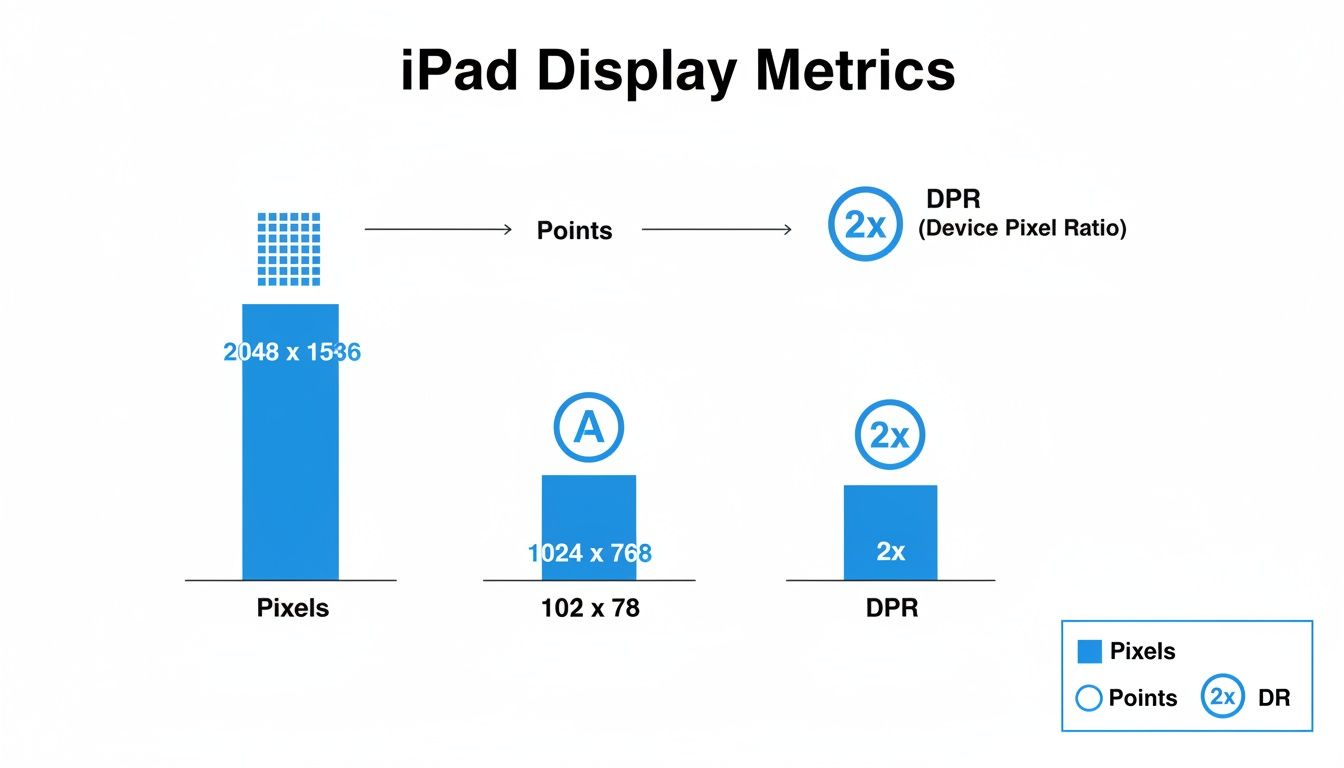
As you can see, a device with a 2x DPR uses a block of four physical pixels to render a single logical point. This is the secret behind the incredibly sharp text and graphics on Apple's Retina displays.
To make things even easier, here's a quick lookup table with the core specs for some of the most common iPad models.
iPad Screen Dimensions Quick Reference
| iPad Model | Screen Size | Resolution in Pixels (Portrait) | Logical Points (Portrait) | Device Pixel Ratio (DPR) |
|---|---|---|---|---|
| iPad Pro | 12.9" | 2048 x 2732 | 1024 x 1366 | 2x |
| iPad Pro | 11" | 1668 x 2388 | 834 x 1194 | 2x |
| iPad Air | 10.9" | 1640 x 2360 | 820 x 1180 | 2x |
| iPad (10th gen) | 10.9" | 1640 x 2360 | 820 x 1180 | 2x |
| iPad Mini | 8.3" | 1488 x 2266 | 744 x 1133 | 2x |
Keep this table handy; it’s a real time-saver when you need to quickly verify the numbers for a specific device.
Why Pixel-Perfect Screenshots Matter for App Store Growth
Think of your screenshots as your primary sales tool on the App Store. They're the very first glimpse someone gets of your app's experience. When a user sees a screenshot that fits their iPad screen perfectly, it subconsciously builds trust and screams professionalism. It tells them you care about quality.
This is where dedicated tools like a screenshot generator can make a world of difference. For instance, when you upload a UI capture into a template for the 12.9-inch iPad Pro, the tool automatically ensures it scales to the required 2048 x 2732 pixels. No more manual resizing nightmares that lead to pixelation.
Here’s exactly how getting the dimensions right helps your app grow:
- You Look More Professional: Correctly sized assets make your app listing feel polished and trustworthy. It's a small detail that has a big impact.
- Higher Conversion Rates: Crisp, clear visuals are simply more persuasive. They do a better job of selling your app and lead to more downloads on both iOS and Android stores.
- Better User Perception: High-quality graphics signal a high-quality app, setting positive expectations before the user even hits the "Get" button.
At the end of the day, mastering iPad screen dimensions isn't just a technical chore; it's a fundamental part of creating marketing materials that actually convert. By starting with the right numbers, you streamline your entire design workflow and give your app its best shot at success.
Before you can design killer, high-converting App Store screenshots, you need to speak the language of digital screens. It all comes down to three key ideas: pixels, points, and Device Pixel Ratio (DPR). Getting your head around how these three work together is the secret to making sure your app’s visuals look sharp and professional on every single iPad.
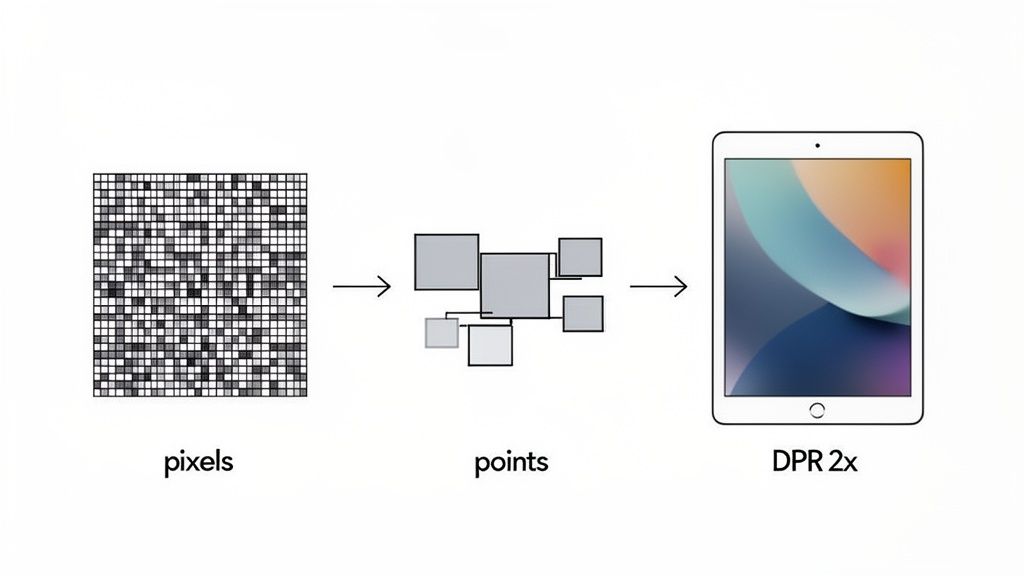
Think of it like this: a physical pixel is the tiniest dot of light a screen can physically display. A logical point, on the other hand, is a resolution-independent unit that designers and developers actually work with in their tools. The magic that connects them is the Device Pixel Ratio, which is simply the multiplier that tells you how many physical pixels are used to draw a single logical point.
The Role of Retina Displays
When Apple introduced the Retina display with the third-gen iPad, it was a game-changer. Suddenly, a screen with a 2048 x 1536 pixel resolution and a density of 264 pixels per inch (ppi) was the new standard. It crammed four times the pixels of its predecessor into the same physical space, which was a massive leap forward for the entire app ecosystem. Text became razor-sharp, images popped, and the whole user experience felt more premium.
This is exactly why DPR became so important. Most modern iPads today have a DPR of 2x. This means that for every single logical point in your design, the iPad uses a 2x2 grid of physical pixels, four pixels in total, to render it.
Actionable Insight: So what does this mean for you? When you’re designing a screenshot for a 2x device, you absolutely must export your final image at double the logical point dimensions. If your design canvas is 820 x 1180 points, your exported asset has to be 1640 x 2360 pixels. Anything less, and you'll end up with blurry, unprofessional-looking graphics.
Practical Impact on App Store Growth
This isn't just a technical detail; it has a direct impact on your App Store conversions. When a potential user lands on your app page, what's the first thing they see? Your screenshots. If they’re blurry or pixelated, it instantly signals a low-quality app, and you've lost their trust before they've even downloaded. Crisp, high-resolution assets, however, scream professionalism and build confidence right away.
The easiest way to nail this is to use a screenshot editor that has built-in templates for specific iPad screen dimensions in pixels. You can just drop your raw UI capture into a device mockup, and the tool handles the rest, ensuring it exports at the perfect resolution every time. It takes all the guesswork out of the process. If you want to dive deeper, check out our detailed guide on App Store screenshot dimensions for more pro tips.
Detailed Dimensions for Every iPad Pro Model
The iPad Pro lineup is where Apple consistently pushes the envelope on performance and display tech, making it a critical target for high-end apps. If you're building for the Pro, you need to get the iPad screen dimensions in pixels just right. It's essential for creating marketing assets that live up to the premium experience these users expect.
These devices aren't just bigger; they often debut new technologies like ProMotion that change how users interact with the screen. For designers and marketers, this means precision is non-negotiable. The massive canvases, like the 2048 x 2732 pixels on the 12.9-inch model, give you so much more room to show off complex UIs. It's a huge opportunity to highlight detailed features in your App Store screenshots, which can make a real difference in conversions for productivity, creative, or other professional apps.
Latest iPad Pro Models (M4)
Apple's newest iPad Pros stick with the ultra-high-resolution displays that pros love, where pixel-perfect clarity is a key selling point.
- 13-inch iPad Pro (M4, 2024): The flagship model boasts a stunning 2064 x 2752 pixel display. It’s the ultimate canvas for showing off sophisticated app features without compromise.
- 11-inch iPad Pro (M4, 2024): The more portable Pro packs a crisp 1668 x 2420 pixel screen, perfect for demonstrating powerful apps that people use on the move.
Pro Tip: Got an app with a complex dashboard? Use a 13-inch iPad Pro template in a screenshot editor like ScreenshotWhale. The extra screen real estate lets you display the full UI without awkward cropping, making your app’s value instantly clear and building user confidence right away.
Previous iPad Pro Generations
Don't forget the older models! They're still widely used, and your App Store assets have to account for them. The iPad Pro's screen density has consistently stayed around 264 ppi across generations, but the resolutions have scaled up dramatically with size.
Take the 11-inch iPad Pro (3rd gen, 2021) at 2388 x 1668 pixels. It packed nearly 4 million pixels into a Liquid Retina display with ProMotion. When that model launched, iPads held 42.3% of the global tablet market share, making specs like these crucial for professionals. You can read about the evolution of iPad displays for more historical context.
Here's a quick breakdown of the most common older models:
- 12.9-inch (3rd-6th Gen): 2048 x 2732 pixels
- 11-inch (1st-4th Gen): 1668 x 2388 pixels
- 10.5-inch (2017): 1668 x 2224 pixels
- 9.7-inch (2016): 1536 x 2048 pixels
Using device-specific templates ensures every single pixel lines up perfectly. A good drag-and-drop editor makes this almost trivial, letting you create high-converting screenshots for both the iOS and Android stores and helping to fuel your app store growth.
All About iPad Air Screen Sizes
The iPad Air sits in a sweet spot, mixing pro-level features with a price point that makes it a go-to for everyone from students to creative professionals. This wide appeal means your App Store screenshots have a big job to do: they need to look incredible and instantly show off your app's value to a huge, diverse audience.
Getting this right starts with the basics: knowing the exact iPad screen dimensions in pixels for every model. Apple has shaken things up recently, especially with the introduction of two different screen sizes in the latest generation. Having a reliable reference is key to creating those pixel-perfect assets that drive downloads.
The Latest iPad Air Models (M2)
The newest M2 generation gives users a choice between two sizes, which means we as developers have a new canvas to think about for our app marketing.
- 13-inch iPad Air (M2, 2024): This one boasts a 2048 x 2732 pixel screen. If that sounds familiar, it's because it’s identical to the larger iPad Pro. It's a fantastic canvas for showing off entertainment or productivity apps.
- 11-inch iPad Air (M2, 2024): Sticking with the classic Air form factor, this version comes in at 1640 x 2360 pixels. It's the perfect size for showcasing lifestyle and everyday utility apps.
Turning Mockups into Conversions
Since the iPad Air appeals to such a broad crowd, your screenshots have to connect. If you’ve got a lifestyle or entertainment app, this is where you can really make an impact.
Here's a practical example: Fire up a mockup tool like ScreenshotWhale. Drop your UI into an iPad Air template and pair it with a vibrant, lifestyle-focused background. Add a short, punchy caption like "Your Weekend, Planned" or "Binge Your Favorites Anywhere." You're not just showing a screen; you're telling a story. This simple move helps people see exactly how your app fits into their life, which is a direct path to boosting conversions.
It’s a simple trick that turns a basic screen capture into a genuinely powerful marketing asset.
Older iPad Air Generations
Don't forget about older models! Plenty of people are still happily using them, and supporting their screen sizes is a must if you want to maximize your reach.
- iPad Air (5th Gen, 2022): 1640 x 2360 pixels
- iPad Air (4th Gen, 2020): 1640 x 2360 pixels
- iPad Air (3rd Gen, 2019): 1668 x 2224 pixels
Creating screenshot sets tailored to these dimensions ensures your app looks crisp and professional for every single potential customer, no matter which iPad Air they're holding.
iPad and iPad Mini Dimensions for App Developers
The standard iPad and its smaller sibling, the iPad Mini, are everywhere. They make up a massive chunk of the user base you're trying to reach, so getting your App Store presence right for these devices is non-negotiable. It all starts with the fundamentals: knowing the exact iPad screen dimensions in pixels.
For a long time, both the standard iPad and iPad Mini stuck to a 4:3 aspect ratio. That consistency makes life a little easier for designers, but don't get too comfortable. The Mini's compact screen is where a lot of apps fall flat. UI elements and text that look perfectly fine on a 10-inch display can become a jumbled, unreadable mess on the Mini. It's a classic design pitfall that tanks the user experience before they've even downloaded your app.
Practical Tips for Small Screens and High Conversions
When you're dealing with smaller screens like the iPad Mini, readability is king. Your App Store screenshots have to communicate value instantly, and that's impossible if people have to squint. Make sure your font sizes are generous and your buttons have plenty of breathing room.
Actionable Example: In your screenshot editor, load your app's UI into an iPad Mini template. Does the text in your main call-to-action button look tiny? Increase the font size in the editor to be bold and clear. Use a vibrant background color to make the device mockup pop. This simple step directly impacts how effective your screenshots are and, ultimately, your app store growth.
The goal is to make your app look effortless and intuitive, right from the first impression on the store page.
Standard iPad and iPad Mini Dimensions
Here are the specs you need to get your screenshots pixel-perfect for these models. For creative professionals, these same screen dimensions are often a key factor when choosing the best iPad for digital art.
- iPad Mini (6th Gen): 1488 x 2266 pixels | 744 x 1133 points | 2x DPR
- iPad (10th Gen): 1640 x 2360 pixels | 820 x 1180 points | 2x DPR
- iPad (9th Gen): 1620 x 2160 pixels | 810 x 1080 points | 2x DPR
Using these exact dimensions ensures your marketing assets look sharp and professional. It’s a small detail, but it’s the kind of polish that helps you stand out on the App Store.
Turning Pixels into Downloads: Creating iPad App Store Screenshots That Actually Convert
Nailing the exact pixel dimensions for your iPad screenshots is the easy part. The real work is turning those technical specs into a set of compelling images that convince people to hit "Get". Think of your App Store screenshots as your most critical sales pitch. You have seconds to tell a story and make a powerful first impression to boost app store growth.
This is where smart design meets App Store Optimization (ASO). It’s not enough to just show your app’s UI. Each screenshot needs to spotlight a core feature or a major benefit, paired with a short, punchy caption that tells the user why they should care. The goal is to build a quick visual narrative that lets someone feel the value of your app before they’ve even installed it.
An Efficient Workflow for High-Converting Screenshots
Creating a full set of screenshots for the iOS and Android stores doesn’t have to be a grind. With the right tools, you can knock out a complete, compliant, and conversion-focused set in just a few minutes.
Forget fiddling with Photoshop templates. Imagine a workflow like this instead:
- Pick a Template: Start with a professionally designed template for your target device, like the 12.9-inch iPad Pro. Your canvas is instantly set to the required 2048 x 2732 pixels.
- Drop in Your UI: Drag your raw screen capture right into the device frame on the template. It snaps into place perfectly, no resizing or distortion needed.
- Write Great Captions: Add a headline and a quick sub-caption that explains the benefit of what the user is seeing.
- Localize in a Click: Targeting multiple countries? Use an integrated tool to translate your text into different languages instantly.
- Export Everything: One final click exports the entire set, all perfectly sized and ready to upload for both the App Store and Google Play.
This is the kind of streamlined process you get with modern screenshot editors, and it can be a total game-changer for your launch process.
The image above shows a real-world editor where this all comes together. You can drop UI into different iPad mockups, tweak your text, and manage multiple designs at once. It’s a system built for growth, moving beyond simple mockups to integrate design and localization from the start.
It’s About Strategy, Not Just Pixels
Ultimately, effective screenshots are all about strategy. Every single image needs to have a job. Your first one should hook the user with your app’s biggest selling point. The ones that follow can break down secondary features, build trust with testimonials, or highlight what makes you unique.
By combining pixel-perfect dimensions with a clear marketing message, you turn a simple requirement into a powerful conversion tool. To dive deeper into the strategy, check out our complete guide on crafting the perfect iOS app screenshot.
Here’s the bottom line: A user decides whether to download your app in a matter of seconds, and that decision is based almost entirely on your visual presentation. Your screenshots must be clean, benefit-driven, and perfectly rendered to earn their trust. Anything less is a wasted opportunity.
Designing for Safe Areas and Aspect Ratios
Look, knowing the raw iPad screen dimensions in pixels is only half the battle. If you want to create an app that feels great to use, you have to think about the interactive space. That's where safe areas come in, and they are absolutely critical.
A safe area is your guarantee that interactive elements like buttons, menus, and important text are always accessible. It ensures they won't get hidden by system UI like the status bar, the Dock, or the rounded corners you see on modern iPads.
Ignoring safe areas is a rookie mistake, and it leads to seriously frustrating user experiences. Imagine placing a key button at the very bottom of an iPad Pro screen. On a device without a Home button, that button is going to be partially or completely blocked by the Home Indicator. Instant user frustration. Respecting these insets makes sure your UI stays functional and looks professional on every single device. It's a small detail that has a huge impact on user retention and those all-important App Store reviews.
Adaptive Layouts and Aspect Ratios
Most iPads stick to a familiar 4:3 aspect ratio, which gives you a nice, balanced canvas for both portrait and landscape modes. But you can't get too comfortable. Some models, like the 11-inch iPad Pro or the iPad Mini 6th Gen, have slightly different ratios. The only sane way to handle this is to build adaptive layouts that can gracefully adjust to these small variations.
An adaptive layout isn't just about shuffling elements around. It's about intelligently reflowing your content to make the best use of the available space. This is what prevents awkward stretching or cropping in your app's UI, and just as importantly, in the App Store screenshots you'll be creating.
Getting this right requires a solid grasp of mobile app design fundamentals. If you want to go deeper, check out this excellent resource on A Practical Guide to Mobile App Designing. It really nails the core concepts you need. And for a more technical dive into building flexible designs, have a look at our own guide on responsive design for mobile apps.
A Few Common Questions About iPad Dimensions
Let's tackle some of the most common questions that pop up when dealing with iPad screen sizes, especially when you're trying to get those App Store screenshots just right.
What are the screenshot sizes for the newest iPad Pros?
You'll need to go with the highest resolution for the latest models. For the 6th Gen 12.9-inch iPad Pro, Apple wants screenshots that are a massive 2048 x 2732 pixels. The 4th Gen 11-inch iPad Pro requires 1668 x 2388 pixels.
Honestly, the easiest way to stay compliant without memorizing these numbers is to use a screenshot tool with up-to-date templates. It takes the guesswork out of the equation for both the App Store and Google Play.
Do I really need to make screenshots for every single iPad size?
Nope, you don't. Apple's App Store Connect is pretty smart about this. If you upload a set for the largest 12.9-inch iPad Pro, the system will often scale it down to fit smaller iPads with a similar aspect ratio, like the iPad Air.
That said, while it's not required, creating custom-designed screenshots for each major size class is a proven strategy. Tailoring your visuals can really boost conversions and make your app look polished on every device.
How should I deal with the different aspect ratios?
Most iPads stick to that classic 4:3 ratio, but you'll find outliers like the 11-inch Pro that mix things up. The best way to handle this on the development side is by building an adaptive UI in Xcode.
For your marketing screenshots, though, the solution is different. Use a tool that provides device-specific mockups. This ensures your UI fits perfectly inside the frame every single time, with no weird stretching or black bars.
Ready to stop guessing and start creating pixel-perfect screenshots that actually drive downloads? ScreenshotWhale gives you professionally designed templates and a simple drag-and-drop editor. You can generate high-converting visuals for both the App Store and Google Play in just a few minutes. Give your workflow a boost and check it out at https://screenshotwhale.com.
Every current size, one page
The 2026 screenshot dimensions for every iPhone, iPad, and Android device — with an editor that exports them all at once.
See all screenshot sizes