How to Create a High-Converting iPhone PNG Mockup for Your App Store Growth
Learn to create a professional iPhone PNG mockup that drives App Store downloads. Our guide offers actionable tips for high-converting screenshots.
What is an iPhone PNG mockup? It's a high quality digital image of an iPhone with a completely transparent background. This simple feature makes it an essential tool for creating professional, eye catching screenshots for both the iOS App Store and Google Play Store, putting all the focus on your app's interface.
Why a Great iPhone Mockup Drives App Installs and Conversions
You get one shot at a first impression on the app stores. A polished iPhone PNG mockup is not just a pretty frame for your screenshots; it's a powerful marketing asset that directly impacts user trust and your download numbers. When someone browsing the store sees your app neatly presented inside a realistic device, it sends an immediate signal of quality and professionalism.
This is not just about aesthetics. Framing your app this way helps potential users instantly visualize it on their own phone, making the experience feel more tangible and familiar before they hit "Install." The transparent PNG cuts out all background noise, making your app's UI the star of the show. Your most important features become impossible to ignore, which is key for boosting app store growth.
Staying on Apple’s Good Side
Beyond looking good to users, high quality mockups are a must for meeting Apple's strict guidelines. Apple's official marketing resources are clear: developers must use accurate product representations. This means your iPhone images must maintain the correct scale, color, and form. No strange angles or alterations allowed. This reality pushes serious developers toward using accurate PNG mockups to stay compliant.
Getting this right helps you avoid potential rejections during the App Store review process. More than that, it shows Apple you're a developer who pays attention to details.
A well executed mockup acts as a silent endorsement of your app's quality. It tells users, "We care about the details," which can be the deciding factor in a crowded marketplace.
Boosting Conversions with a Professional Sheen
Ultimately, this is all about turning browsers into downloaders. A professional presentation elevates your entire brand. A slapped together, amateurish screenshot can make someone assume your app is buggy or poorly designed, even if it is fantastic. On the flip side, a crisp iPhone mockup woven into a thoughtful design with vibrant colors tells a compelling visual story that boosts conversions.
This principle extends far beyond the App Store; it is a core concept of why high-quality media is crucial for digital advertising in general. By investing in a great visual presentation, you set the stage for better app store growth and a stronger return on your hard work.
Choosing the Right iPhone Model for Your Mockup
Picking an iPhone model for your mockup is not just about aesthetics. It is a strategic move that sends a powerful signal to potential users about who your app is for.
Do you go with the latest iPhone Pro Max? That screams premium. It positions your app as a high performance tool for tech enthusiasts. On the other hand, using a more standard, slightly older model can feel more approachable. That is a smart play if you're building a utility app or a game for the masses.
Photorealistic vs. Minimalist Styles
Beyond the phone, the style of the frame is a big deal. Are you aiming for a photorealistic shot that looks like it was pulled from a real world photoshoot? Or a clean, minimalist frame that puts 100% of the focus on your UI?
There is no single right answer. It all comes back to your app's brand and category.
- Photorealistic Mockups: These work brilliantly for lifestyle apps. If your app is about travel, fitness, or social networking, showing it in a realistic context helps people visualize it as part of their daily routine.
- Minimalist Frames: These are perfect for productivity, finance, or B2B apps where the user interface and the data are the real stars. The clean, simple frames cut out the noise and let your app's functionality shine.
A meditation app would feel right at home in a clean, minimalist frame. A high octane racing game? A dynamic, photorealistic presentation would be a much better fit.
Your choice of mockup is an extension of your brand story. A premium device suggests sophistication and power, while a standard model communicates accessibility and practicality. Choose the one that speaks your app's language.
Market Share vs. Your Audience
It also helps to look at the data. While it is tempting to always feature the newest iPhone, your target audience might be using something completely different. Aligning your mockups with popular devices can increase relatability.
Here is a quick breakdown to help you decide which device makes the most sense for your marketing goals.
| iPhone Model | Approx. Market Share (Late 2025) | Best For Targeting | ScreenshotWhale Template Focus |
|---|---|---|---|
| iPhone 15/16 Pro Max | 25-30% | Power users, tech enthusiasts, premium subscribers | Photorealistic & premium styles |
| iPhone 15/16 Pro | 20-25% | Professionals, early adopters, high-value customers | Clean, modern, and professional frames |
| iPhone 14/15 (Standard) | 30-35% | The mass market, casual users, families | Relatable, lifestyle, and minimalist frames |
| iPhone SE / Older | 10-15% | Budget-conscious users, emerging markets | Simple, clear, and feature-focused frames |
This data, including insights from sources like TelemetryDeck's analysis, shows a clear concentration around the Pro and standard models. While the latest Pro Max devices are key for high value app marketing, the standard models still command a huge slice of the pie. Choosing the right iphone png mockup helps you connect with the right segment of that pie.
Finding the Best Mockups
Once you have a strategy, it is time to find the actual mockups. Luckily, you have got plenty of options.
You can hunt for free files in the Figma Community or buy premium assets from stock photo sites. But if you want to create efficient, high converting screenshots, a specialized generator like ScreenshotWhale is a game changer. These tools give you a library of pre made templates with different devices and styles. You just drag, drop, and get polished visuals in minutes.
The goal is to create realistic portrayals that not only look great but also meet Apple's App Store guidelines. For more on this, you can dig into discussions about the impact of device choice in app marketing.
Step-by-Step: Creating High-Converting App Store Screenshots
Let's get down to the fun part where your design work comes to life. Creating an iPhone PNG mockup is not just a technical checklist; it is about making smart, strategic choices that result in a high converting asset for the App Store and Google Play.
The process boils down to a few key stages: prepping your screenshots, picking the right device frame, and then putting it all together to tell a compelling visual story that drives app store growth.
Whether you use a streamlined tool like the ScreenshotWhale editor or design software, the end goal is the same: a polished, high quality PNG with a transparent background that is ready to make an impact.
First Things First: Prep Your Raw App Screenshots
Before you even think about dropping a screenshot into a device frame, the raw images themselves must be perfect. This is non negotiable.
Start by capturing the absolute best, most compelling moments from your app. You want to showcase your core value, the killer features, and what makes your app special. Do not just grab random screens.
Make sure you capture them at the correct resolution for your target devices. For an iPhone 15 Pro Max, for example, your screenshot needs to be exactly 1290 x 2796 pixels. Getting this right saves you from pixelated, blurry UI inside your final mockup.
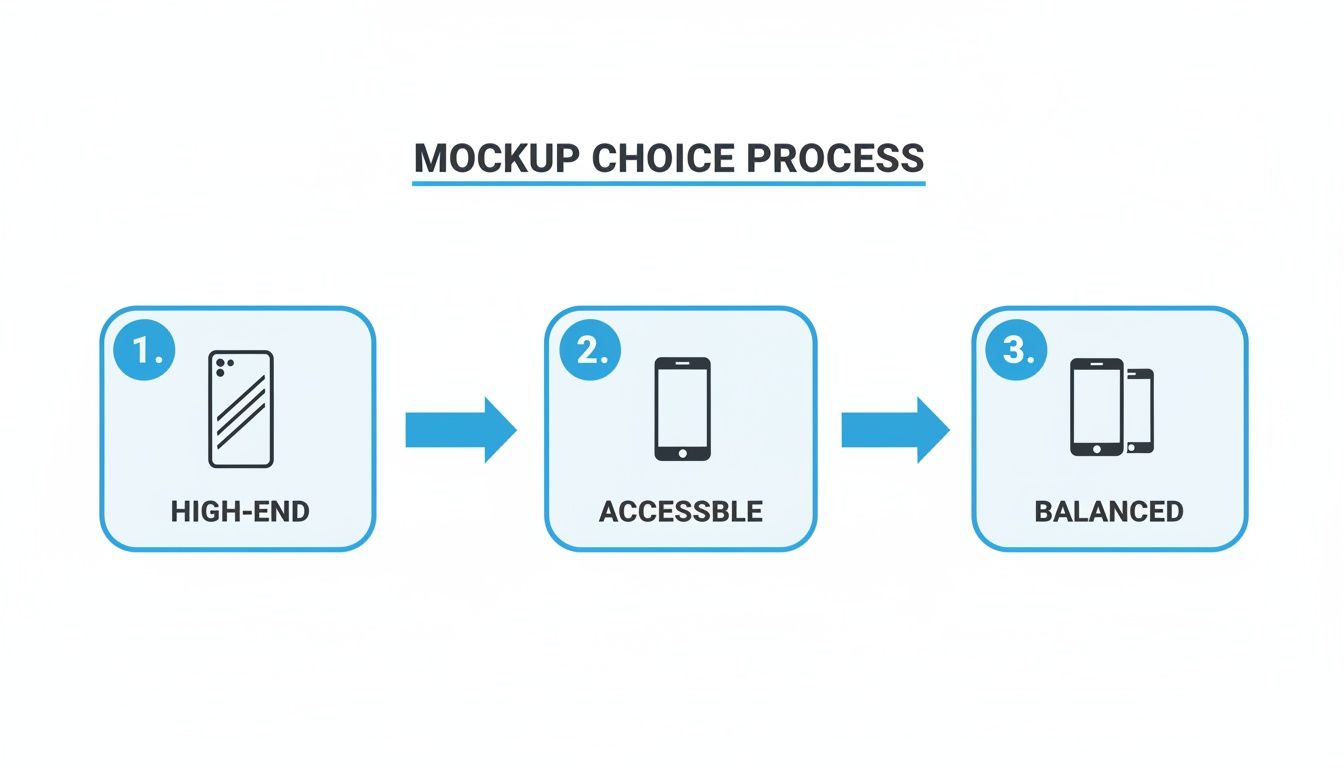
This infographic breaks down the strategic thinking behind choosing the right mockup for your audience.
As you can see, the device you choose is not just a container; it sends a direct message about your app's positioning, whether you are aiming for a premium feel, mass market appeal, or something in between.
Putting It All Together With an Editor
Using a dedicated editor like ScreenshotWhale is the path of least resistance. Instead of fussing with layers, masks, and sourcing device assets, the workflow is reduced to a few clicks. You drag and drop your prepped screenshots into professionally designed templates.
The site editor does all the heavy lifting. For example, you can:
- Select a Template: Start by choosing a layout with a vibrant, appealing background that matches your app's branding.
- Drop in Your Screen: Drag your raw app screenshot directly onto the iPhone PNG mockup in the template. The editor automatically fits it perfectly.
- Add Conversion-Focused Text: Click on the headline text box and type a powerful benefit like "Plan Your Week in 60 Seconds." Change the font size and color to make it pop against the background.
This approach is a lifesaver for creating efficient and high converting app store screenshots, especially for teams that need to produce localized visuals for different countries and languages.
A great mockup is more than a device frame; it's a carefully composed scene. Ensure your UI is legible, the text is punchy, and the whole composition guides the user's eye straight to the most important features.
The Manual Route: Creation and Exporting
For those who love the control of a hands on approach with tools like Figma or Photoshop, the process requires more attention to detail. You will have to find a high quality iphone png mockup file, place your screenshot on its own layer, and meticulously align it within the device's screen.
No matter which tool you use, the final step is exporting. Always export your finished mockup as a PNG file with transparency enabled. This creates a versatile asset that you can place onto any background like solid colors, gradients, or photos in your final App Store screenshot designs.
This flexibility is a complete game changer for app growth teams. Some generators even let you build out interactive prototypes and wireframes, which is perfect for mapping out user flows before submission.
Advanced Strategies: From Mockup to Marketing Machine
Got your perfect iPhone PNG mockup? Great. That is the foundation. Now, the real work begins.
This is where you move beyond just showing your app and start selling it. We are talking about turning that clean device frame into a high octane marketing asset, one that actually drives installs. It is all about wrapping your mockup in vibrant backgrounds, snappy headlines, and text that screams benefits, not just features.
The goal is to create a visual story. You want to guide a potential user's eye, showing them exactly why your app deserves a spot on their home screen. Every choice, from the color palette to the font, has to work together to communicate value in a split second.
Proven ASO Strategies for Screenshots
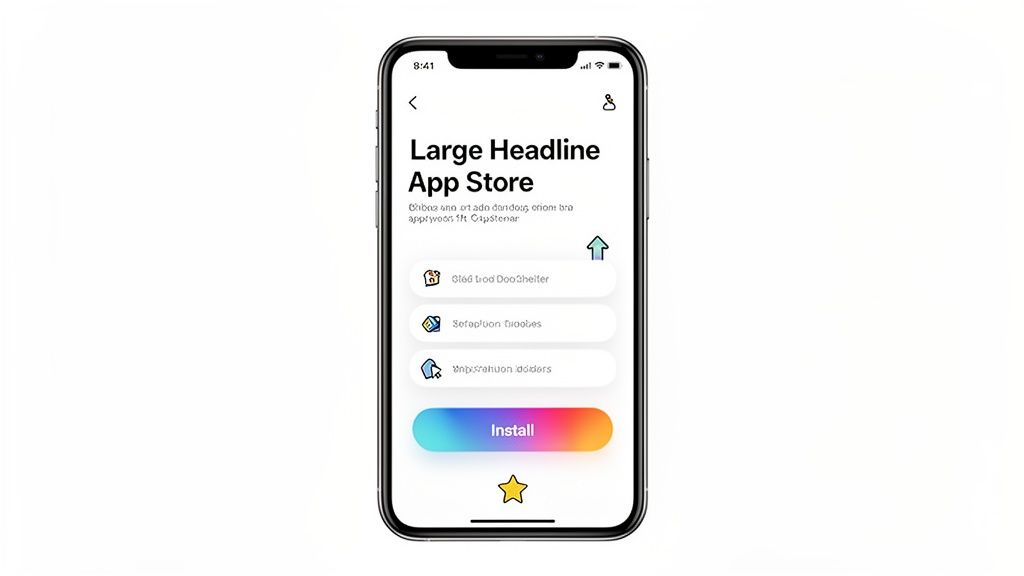
Let’s get one thing straight: your first two screenshots are the most valuable real estate you have. User behavior studies are clear; most people decide whether to download an app based on those initial images alone. This is your moment to show off your app’s core value proposition, no fluff allowed.
You need to immediately answer the user's biggest question: "What's in it for me?" A killer strategy is to dedicate each of the first few screenshots to a single, powerful benefit.
- Screenshot 1: Hit them with your main value prop. Use a clear, benefit focused headline that solves a problem.
- Screenshot 2: Back it up. Show a key feature in action that directly supports that main promise.
- Screenshot 3+: Build trust. This is the place for social proof, like testimonials, awards, or impressive numbers.
This is not a random assortment of images; it's a funnel. You are intentionally walking users from casual interest to download worthy confidence.
From Basic to High-Converting
Picture the typical "before" scene: a raw screenshot plopped into a generic mockup. Sure, it shows what the app looks like, but it does not sell the experience.
Now, imagine the "after." That same screenshot is nestled inside a sleek iPhone PNG mockup, set against a vibrant gradient background. A bold headline like "Track Your Fitness in Seconds" grabs attention. Below, a short caption highlights a specific outcome, like "Personalized workout plans that actually work."
The difference is storytelling. A basic screenshot informs, but a well designed one persuades. It connects a feature to a real world benefit, making the app feel indispensable before they have even hit the download button.
To push things even further, you can tap into tools that give you a serious competitive edge. For example, using an ad creatives AI can help you rapidly test and generate visual variations to see what truly resonates with your audience.
Using Templates for a Head Start
Building a compelling visual narrative from scratch for every screenshot is a ton of work. This is where pre designed templates become an absolute lifesaver for creating efficient and high converting app store screenshots.
Platforms like ScreenshotWhale have entire libraries of layouts designed specifically for app genres, from productivity tools to fitness trackers. These are not just pretty pictures; they are built with App Store Optimization (ASO) best practices in mind. You can find a ton of great options by exploring a high quality iPhone mockup template that fits your brand's vibe.
Starting with a template gives you a professional, structured framework. You just drag in your screen captures, tweak the text, and adjust the colors. It is not just about saving hours of design time; it is about using a proven formula to guide users right to that "Install" button.
How to Automate and Scale Screenshot Creation
Let's be honest: manually creating screenshots for every new feature, every device size, and every new country is a soul crushing time sink. If you are trying to move fast, this manual process quickly becomes a huge bottleneck, holding up app updates and killing your global expansion plans.
The only way to break free is to build a smarter, more efficient workflow built on templates and automation.
This is not just about saving time. It is about brand consistency. When every single screenshot shares the same design language with the same fonts, vibrant colors, and layout, you build a stronger, more recognizable presence on the App Store. The goal is to turn screenshot production from a tedious chore into a streamlined part of your development pipeline.
Leverage Templates for Speed and Consistency
The foundation of any scalable system is a solid set of templates. Instead of staring at a blank canvas every time, you start with a pre approved design that already has your branding and ASO best practices baked right in. This is where a dedicated screenshot generation tool really shines.
With a platform like ScreenshotWhale, you can set up a master template that nails down the essentials:
- Your chosen iPhone PNG mockup for a consistent device look across the board.
- Brand approved fonts and color palettes to keep everything on brand.
- Pre defined layouts for your headlines, captions, and device placement.
Once that template is locked in, updating screenshots for a new feature becomes ridiculously simple. You just swap out the screen capture and tweak the text. All the heavy design lifting is already done, cutting your production time from hours down to just minutes.
Automate Production with an API
For true, massive scale, especially when you are launching globally, automation is the final piece of the puzzle. An API completely transforms your workflow. Forget manually creating each screenshot set in a design tool; you can programmatically generate entire batches of visuals without lifting a finger.
An API driven approach lets you do some powerful things:
- Integrate screenshot generation right into your CI/CD pipeline.
- Automatically update screenshots with fresh UI captures after every build.
- Generate localized assets by feeding translated text strings directly into your master template.
This is a strategic shift. It means you can generate hundreds of unique, localized screenshots for dozens of markets without a designer ever having to open an editor. It's the ultimate setup for teams managing multiple apps or supporting a wide international user base.
For instance, by combining the ScreenshotWhale API with its AI translation engine, you can take your English marketing copy and programmatically generate fully designed screenshots for over 100 languages. This process saves an unbelievable amount of time and boosts your app store growth by letting you launch globally with confidence.
If you want to go deeper on this workflow, we have written a full guide on how to generate screenshots for the App Store at scale.
Common Questions About iPhone PNG Mockups
Even with a solid plan, a few specific questions always seem to pop up. Let's tackle the most common ones from developers and marketers who are serious about creating a high converting iphone png mockup.
Getting these small details right can be the difference between a smooth App Store submission and a frustrating rejection, not to mention making a real impact on your audience.
What’s the Best Resolution for App Store Screenshots?
Always, and I mean always, provide your screenshots at the highest possible native resolution for the devices you are targeting. Do not downsample.
For example, a 6.7 inch device like the iPhone 15 Pro Max requires images at 1290 x 2796 pixels. If you're targeting a 6.1 inch model like the iPhone 15 Pro, you will need them at 1179 x 2556 pixels.
Apple's specs can and do change, so keeping up is part of the job. This is where a tool like ScreenshotWhale really saves you headaches. It automatically resizes everything to the correct dimensions when you pick a device template, so you are always compliant without even thinking about it.
Can I Use a Mockup of an Older iPhone Model?
Absolutely. In fact, it can be a smart strategic move. While slapping your app on the latest iPhone looks premium and appeals to early adopters, it is not always the right call.
Using a more widely held model, like an iPhone 14, can make your app feel more grounded and accessible to a much broader audience. It is less intimidating.
The key is knowing your target user. If your app is a high performance video editor, a Pro Max model sends the right message. But if it's a simple utility for everyone, a more common model often connects better.
A transparent background is the secret to creative freedom. It lets you place your mockup on any branded background, turning a simple screenshot into a visually compelling story that drives conversions.
Do I Really Need a Transparent Background for My Mockup?
Yes, you really do. A transparent background, the whole reason we use the PNG format, is non negotiable if you want maximum flexibility. It lets you place the device mockup onto any background color, gradient, or lifestyle image that fits your brand.
This is how you create those rich, cohesive screenshot sets that look professionally designed and feature neat, appealing imagery with vibrant colors. A non transparent mockup (like a JPG) comes with a fixed background, which completely boxes you in creatively and often looks cheap.
What's the Easiest Way to Create Localized Screenshots?
Doing this manually is a soul crushing, time consuming task. Trust me, you do not want to go down that road. The only efficient way to handle localization and boost global app store growth is with a specialized tool built for it.
For instance, ScreenshotWhale has an AI translation engine that can take your English copy and produce versions for over 100 languages instantly. The best part is that the text is automatically reflowed to fit the existing design.
This turns a job that would take a human designer days or even weeks into a simple, automated step you can knock out in a few minutes. That's how you scale an app globally without hiring an army.
Ready to create stunning, high-converting screenshots in minutes? With ScreenshotWhale, you get access to professionally designed templates, a full range of iPhone PNG mockups, and AI-powered localization to scale your app globally. Try it for free at screenshotwhale.com.
Skip the blank canvas
Start from a professional App Store screenshot template and swap in your own app.
Browse templates